2.4. Enrollment
2.4.1. Pending Admissions
Case managers can view all students with pending admission requests and take necessary actions, such as accepting, declining, or returning for updates.
- Sign in to eSIS.
- From the left-side menu, select "Schools".
- Expand the menu under "Schools" and click on "Enrollment".
- On the top, click on "Pending Admissions".
- Enter your search criteria such as Case Manager, Board/District, School, Curriculum, Grade, Application Status
- View your search results in the grid.
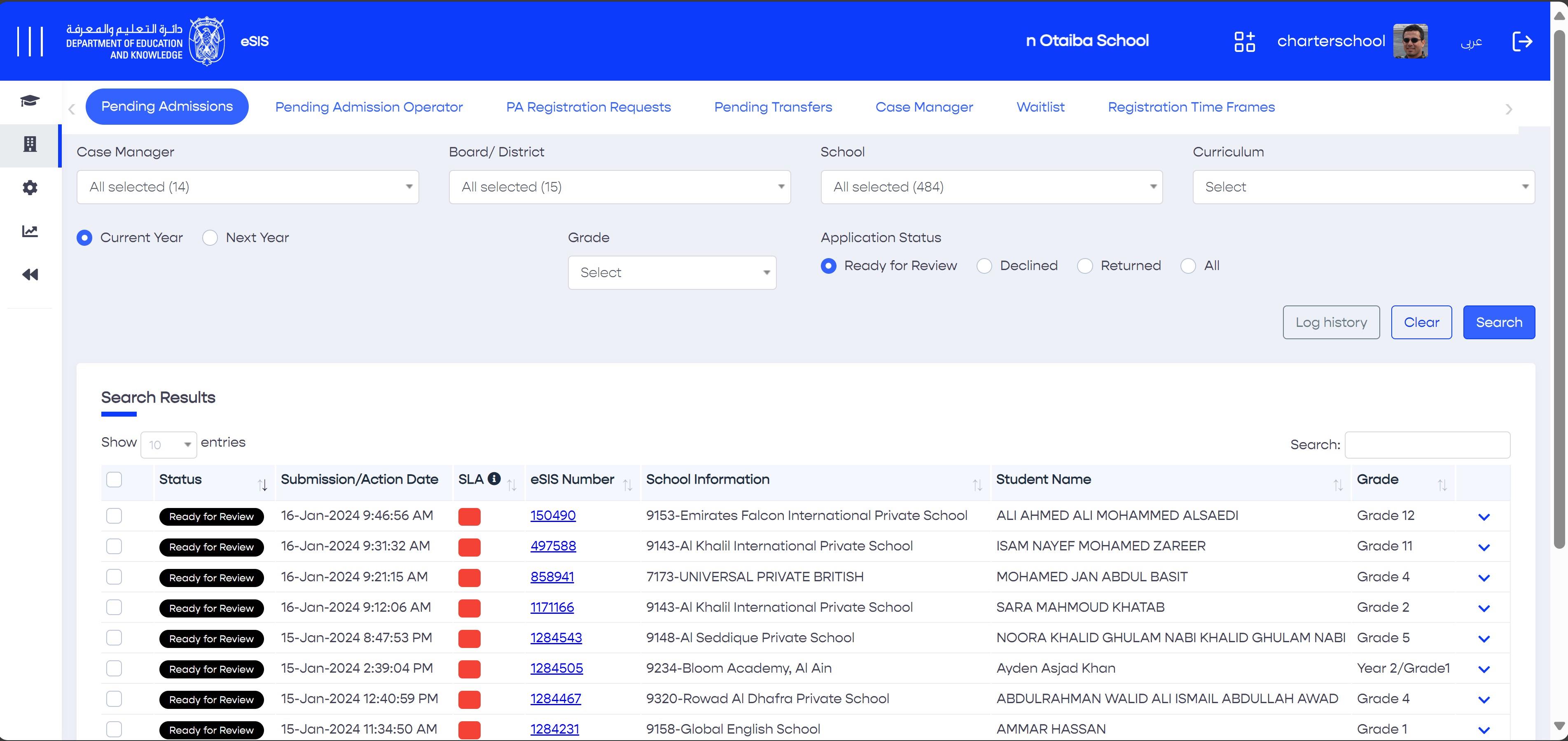
7. Click the checkbox to select a specific pending request, multiple or all.
8. On the right, click any required mass action (accept, decline, and return for updates).
9. Click "Save" to complete the process.
2.4.1.1. Pending Admissions - History Log
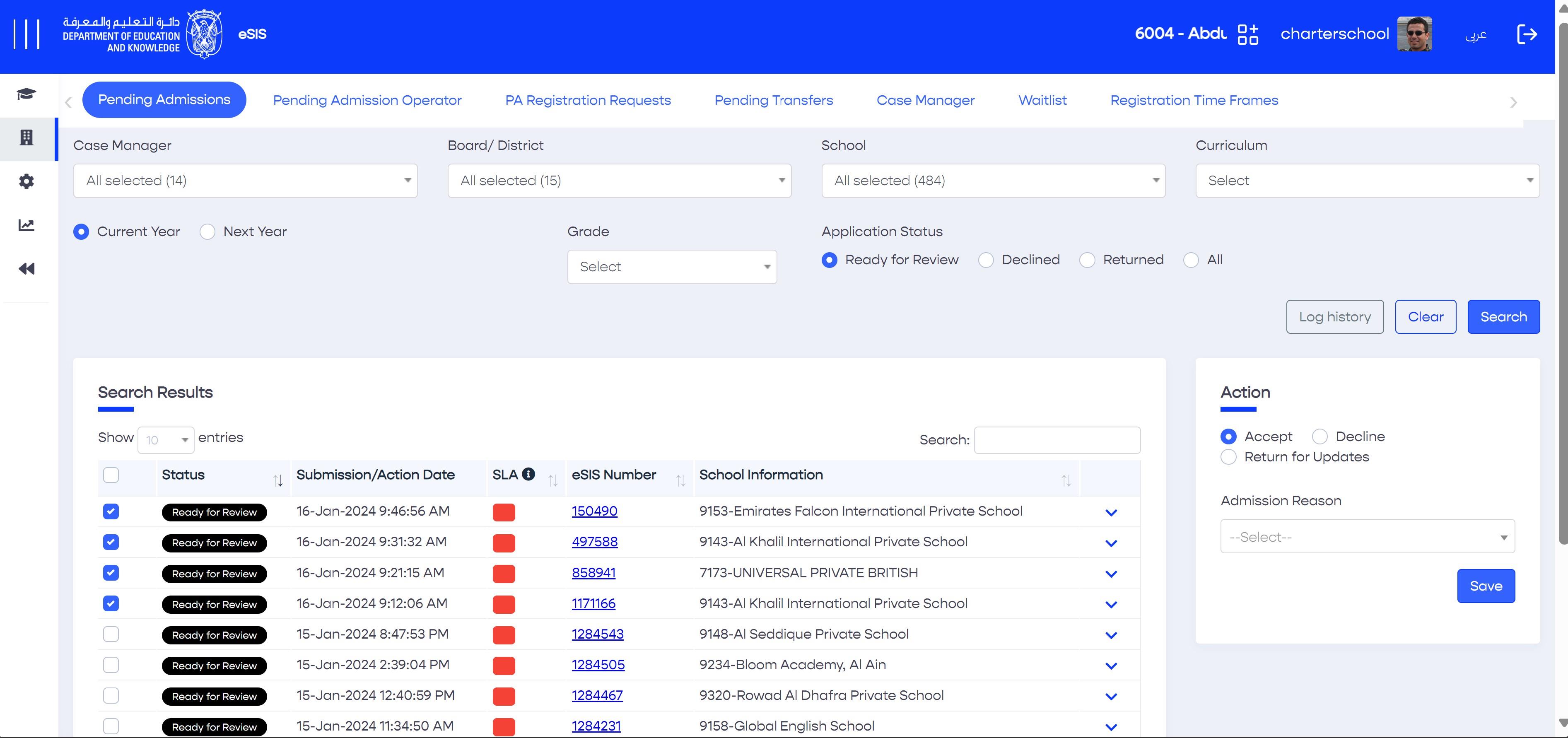
This log displays all past activities related to previous requests, indicating the actions taken and their corresponding date/time, along with the responsible party.
You can access the history log by clicking the "Log History" button on the "Pending Admissions" main page.
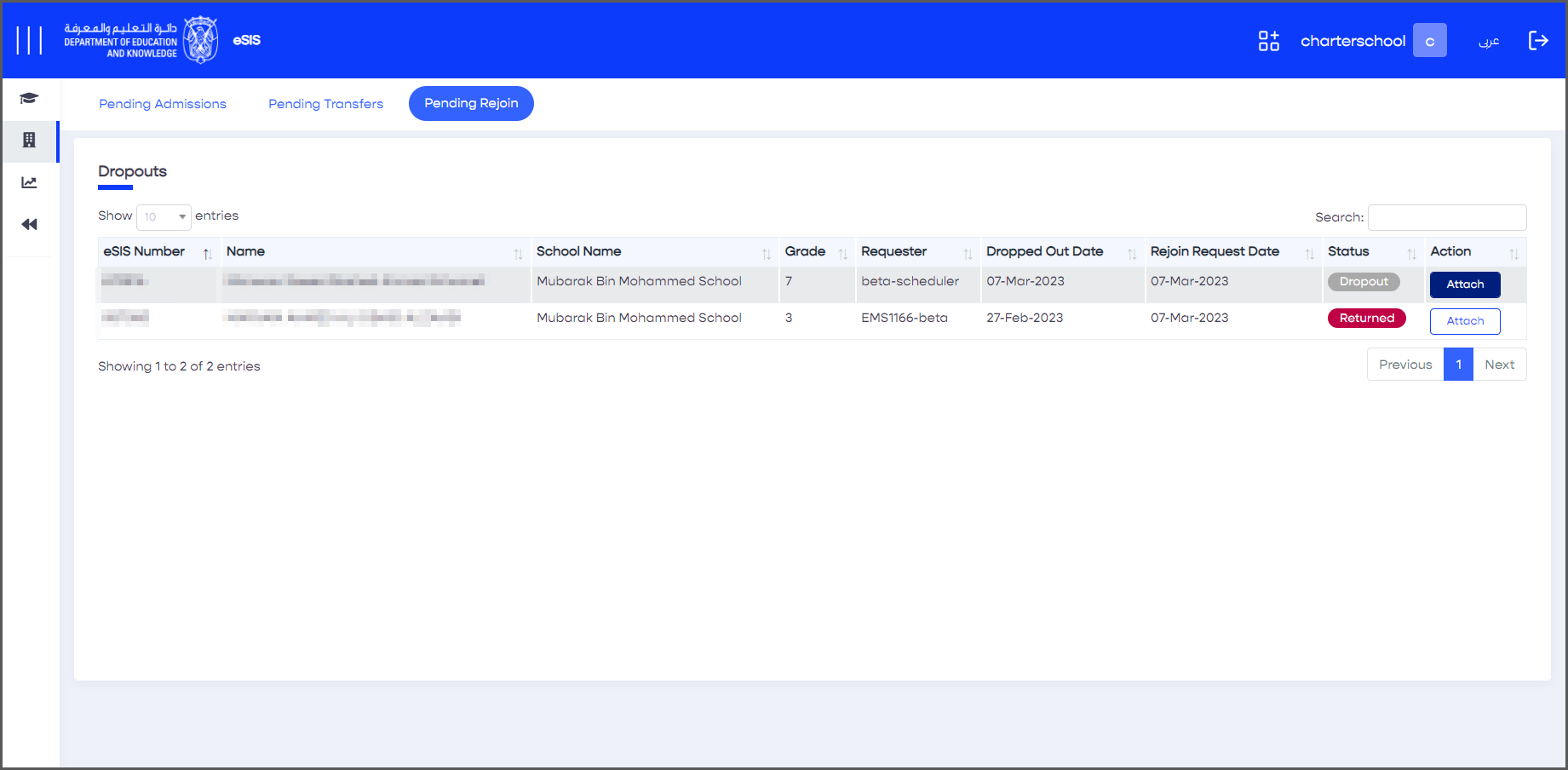
2.4.2. Dropouts
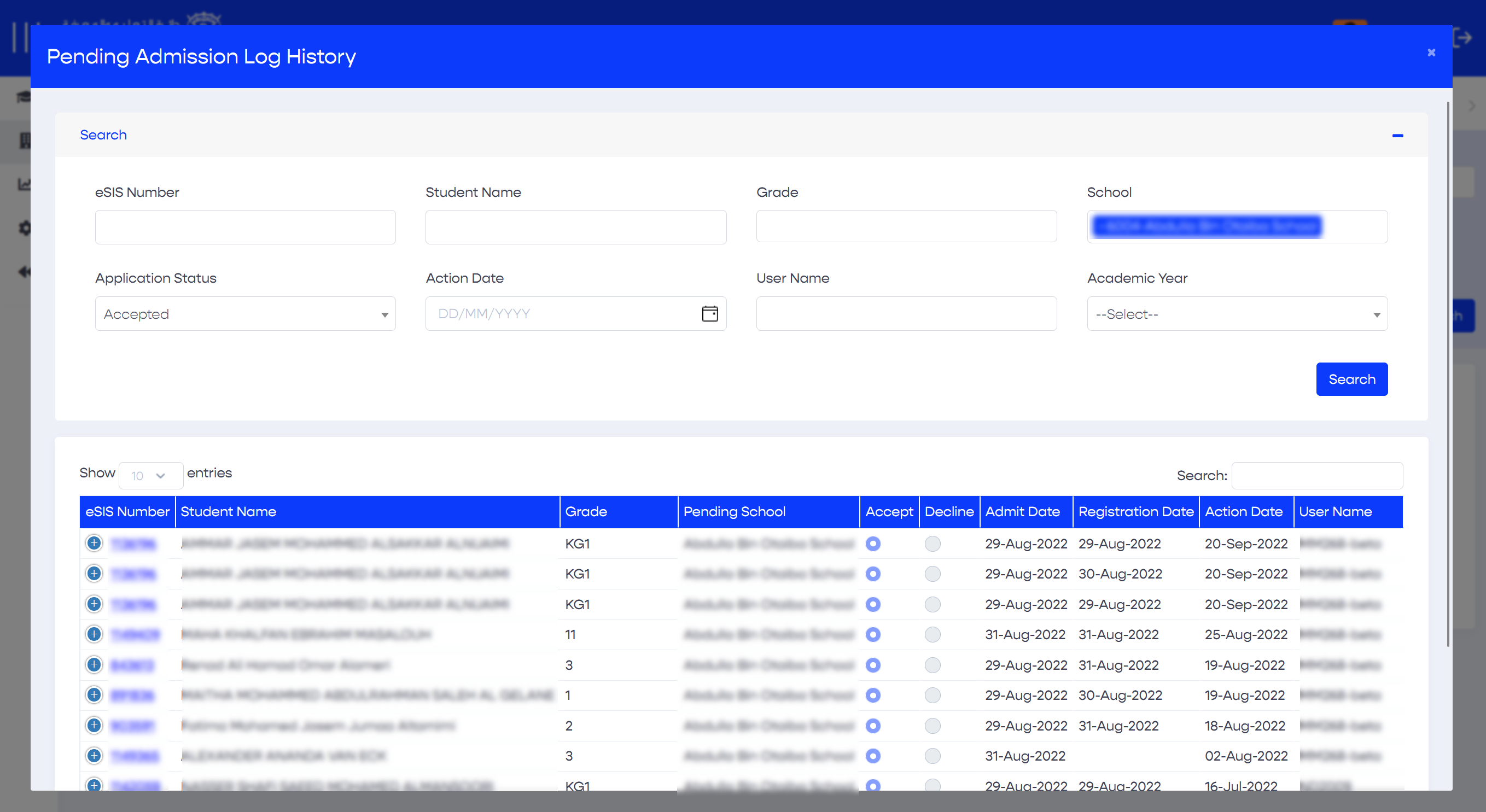
This list is available for charter schools, and it includes all dropped-out students.
2.4.3. Adding & Editing Registration Timeframes
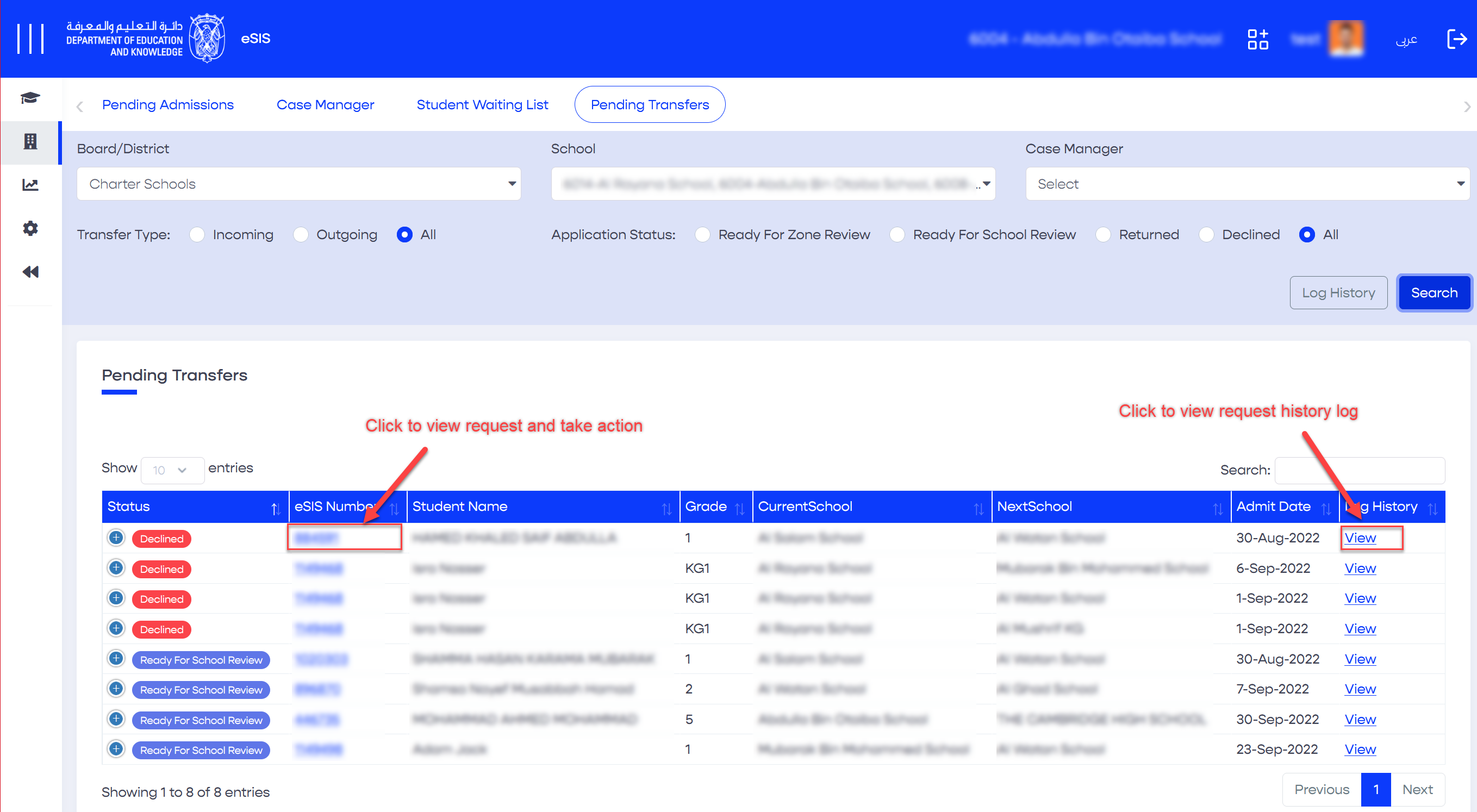
2.4.4. Pending Transfers
This feature allows you to review transfer requests and take actions, including accepting, declining, or requesting updates.
2.4.5. Case Managers
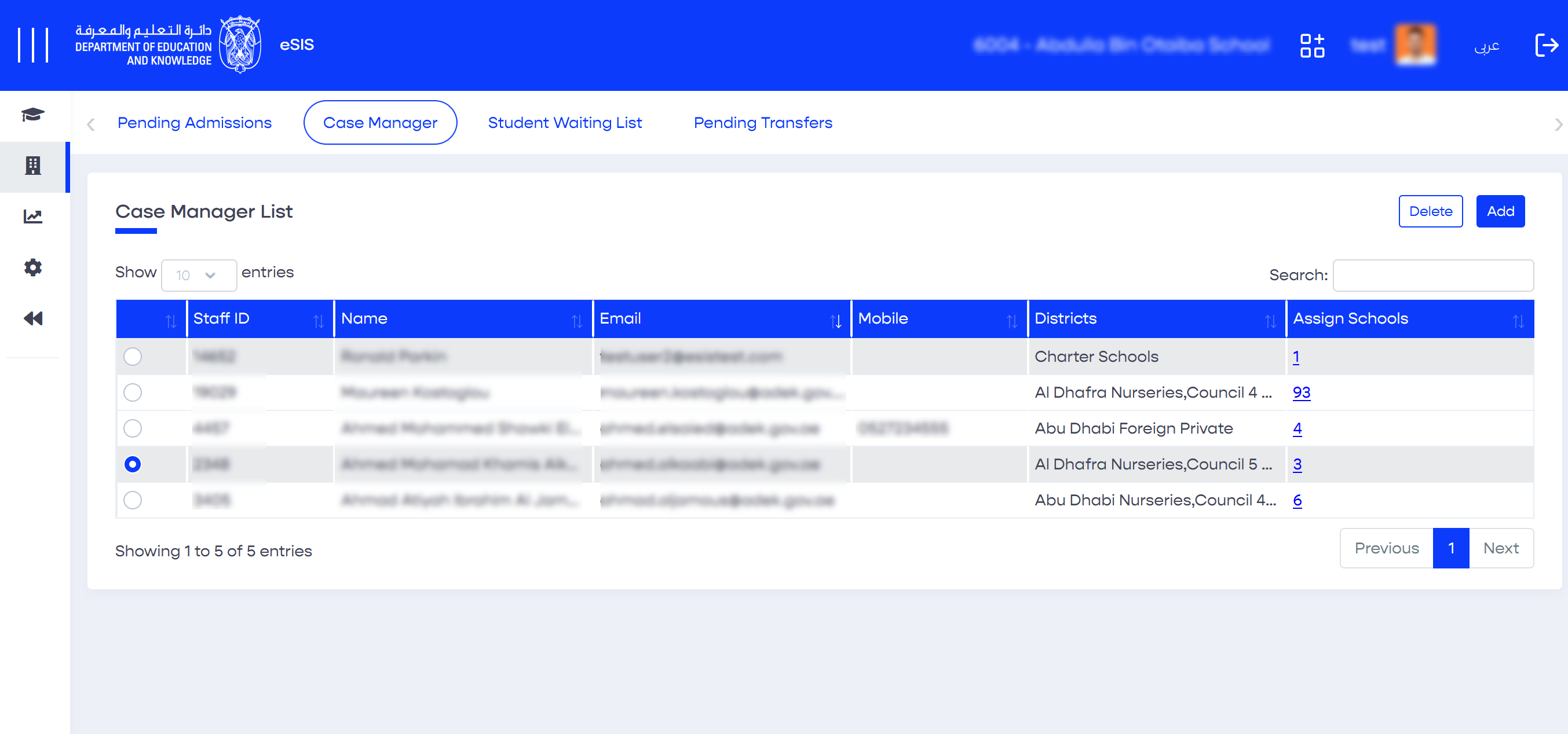
Case Managers are assigned to one or multiple schools to perform administrative actions and process submitted requests on behalf of other assigned case managers:
- Sign in to eSIS.
- From the left-side menu, choose "Schools."
- Select "Enrollment" and then click on "Case Manager".
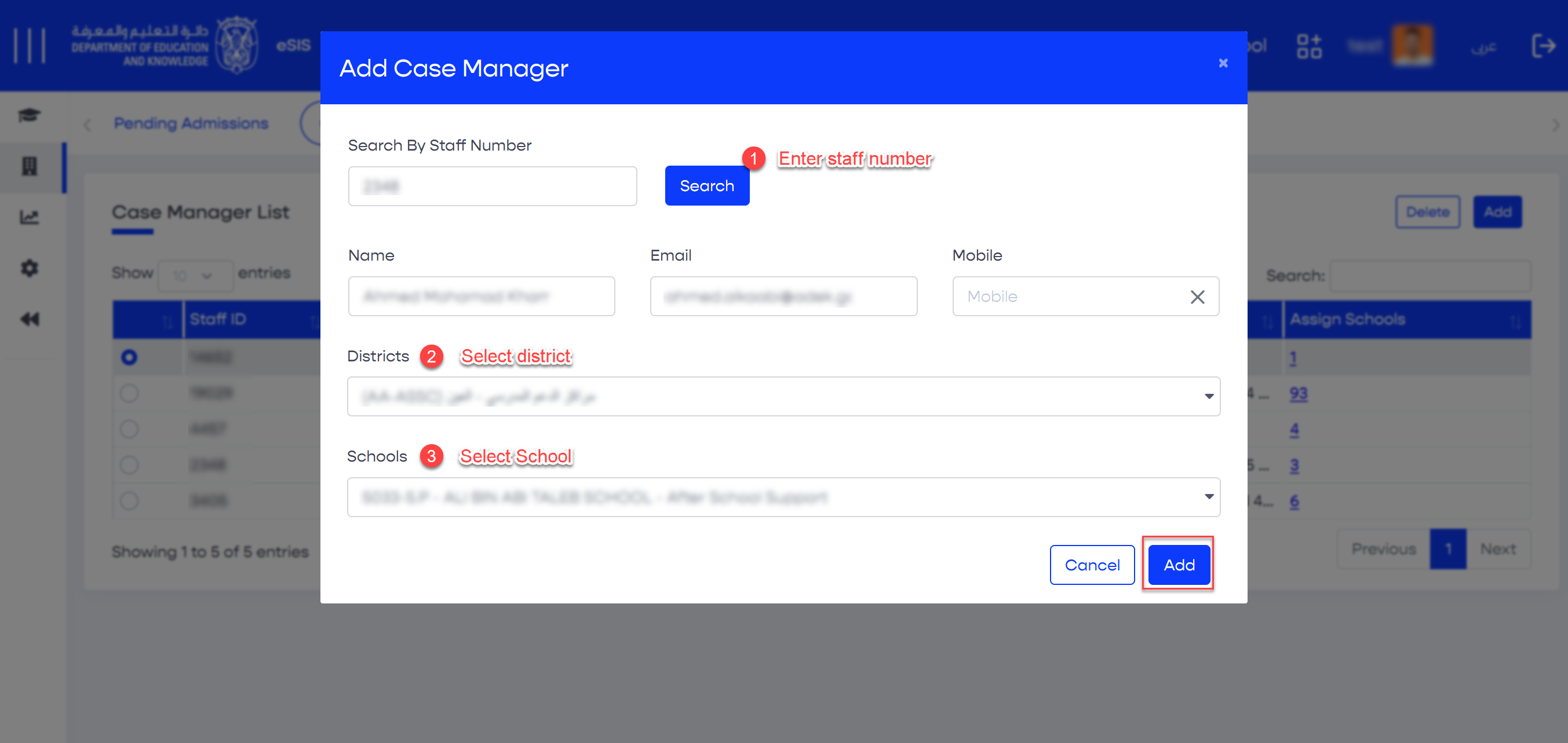
- Click the "Add" button.
- In the popup, enter a staff number and click "Search".
- Select the district and school(s).
- Click the "Add" button.
The case manager will be assigned to the selected school(s) by super users and can be unassigned by clicking on the assigned Schools column in the main list.
2.4.6. Parent Registration Requests
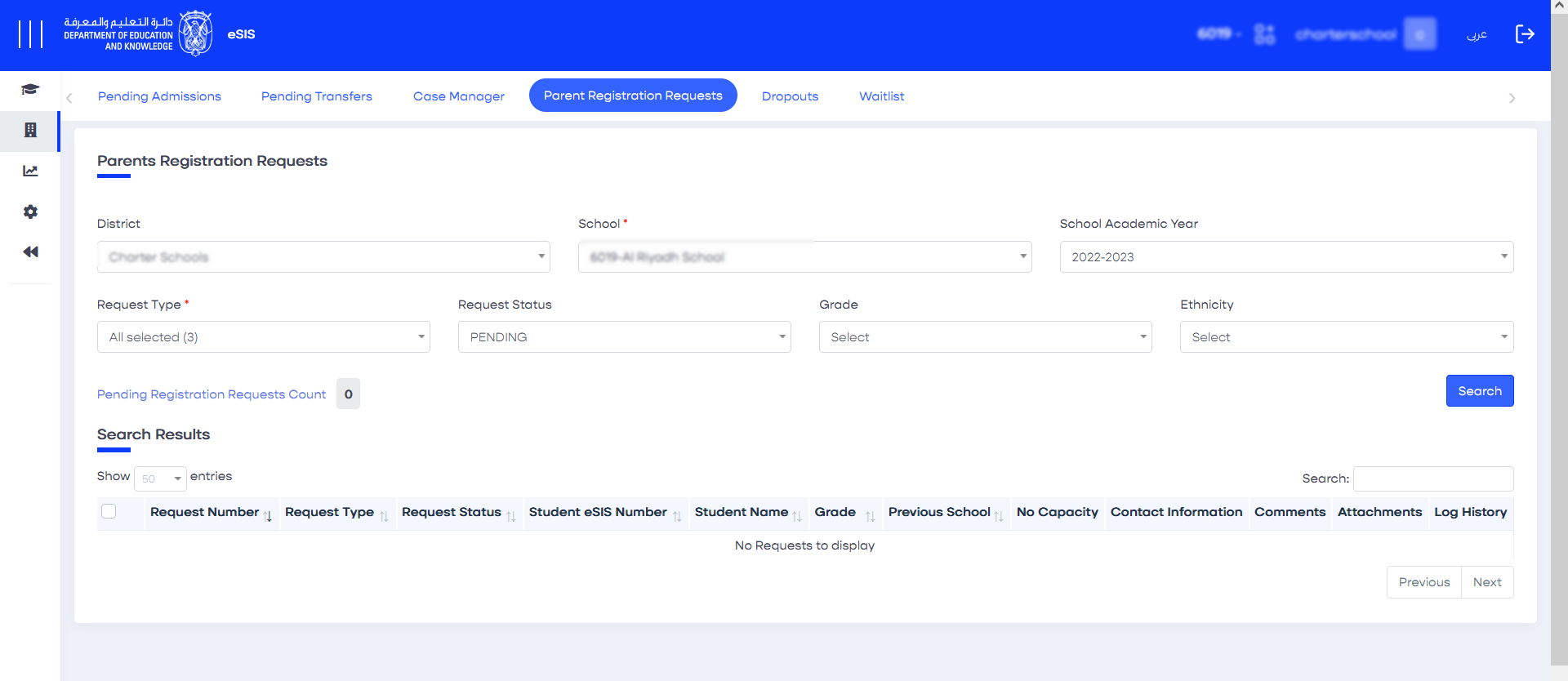
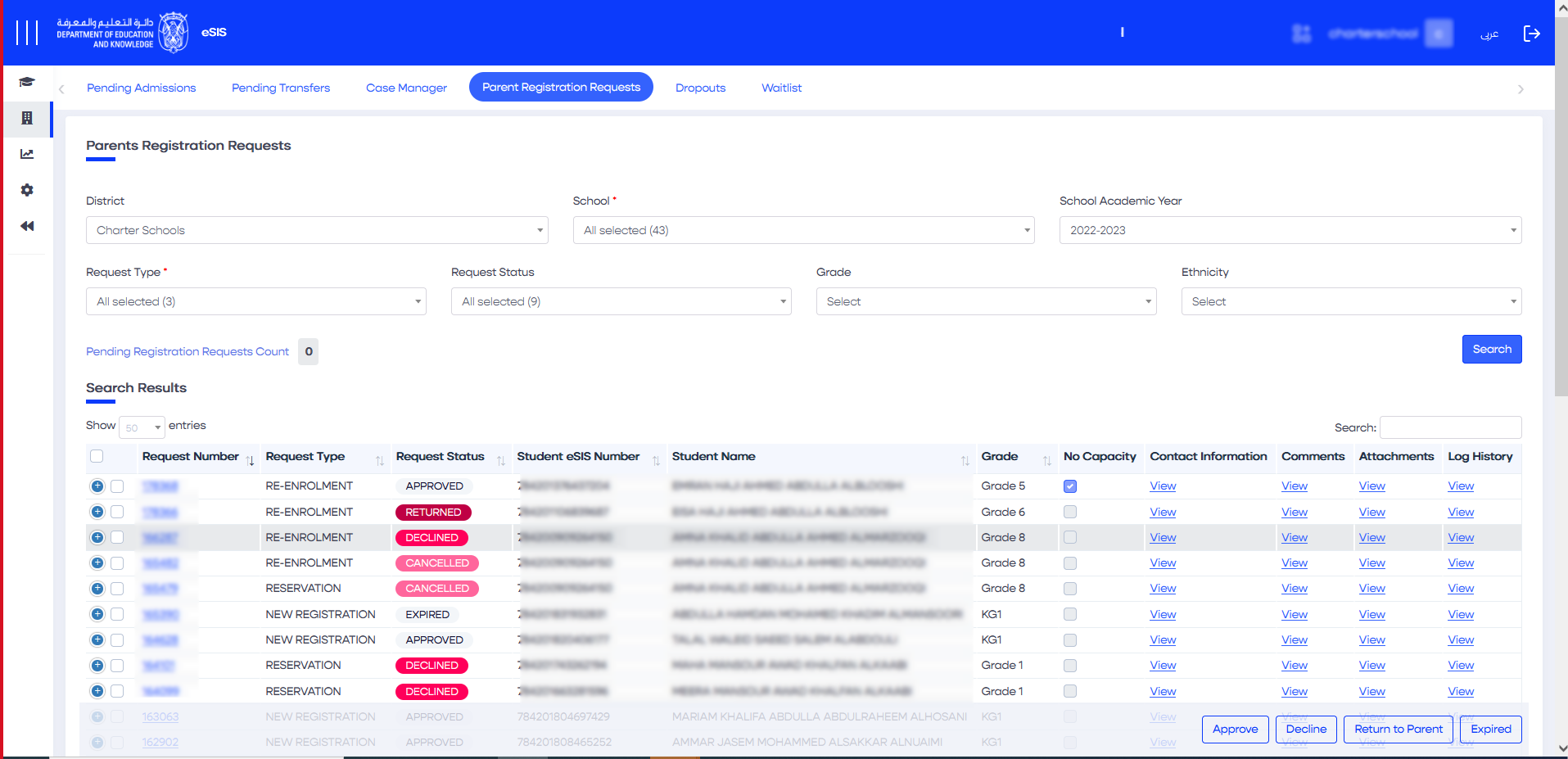
This feature allows you to view submitted Tasjeel requests from parents, review them, and take the necessary actions.
2.4.6.1. Approving a Registration Request
- Sign in to eSIS.
- From the left-side menu, select "Enrollment".
- Navigate to the "Parent Registration Requests" menu.
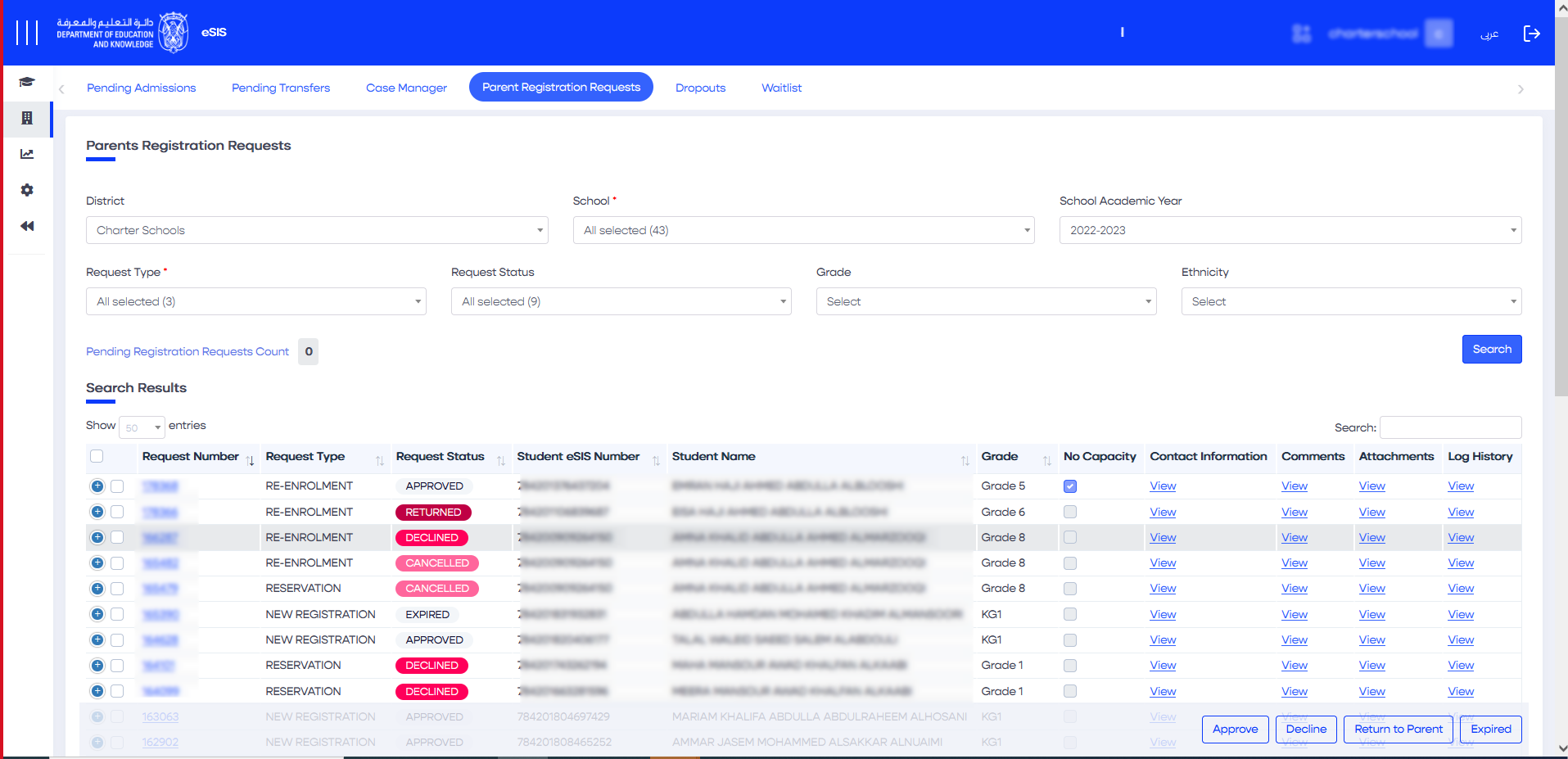
- Choose the desired request.
- Click "Approve".
Info
If a charter school registration request is approved, the student is added to the class capacity.
2.4.6.2. Returning a Request
- Sign in to eSIS.
- From the left-side menu, select "Enrollment".
- Navigate to the "Parent Registration Requests" menu.
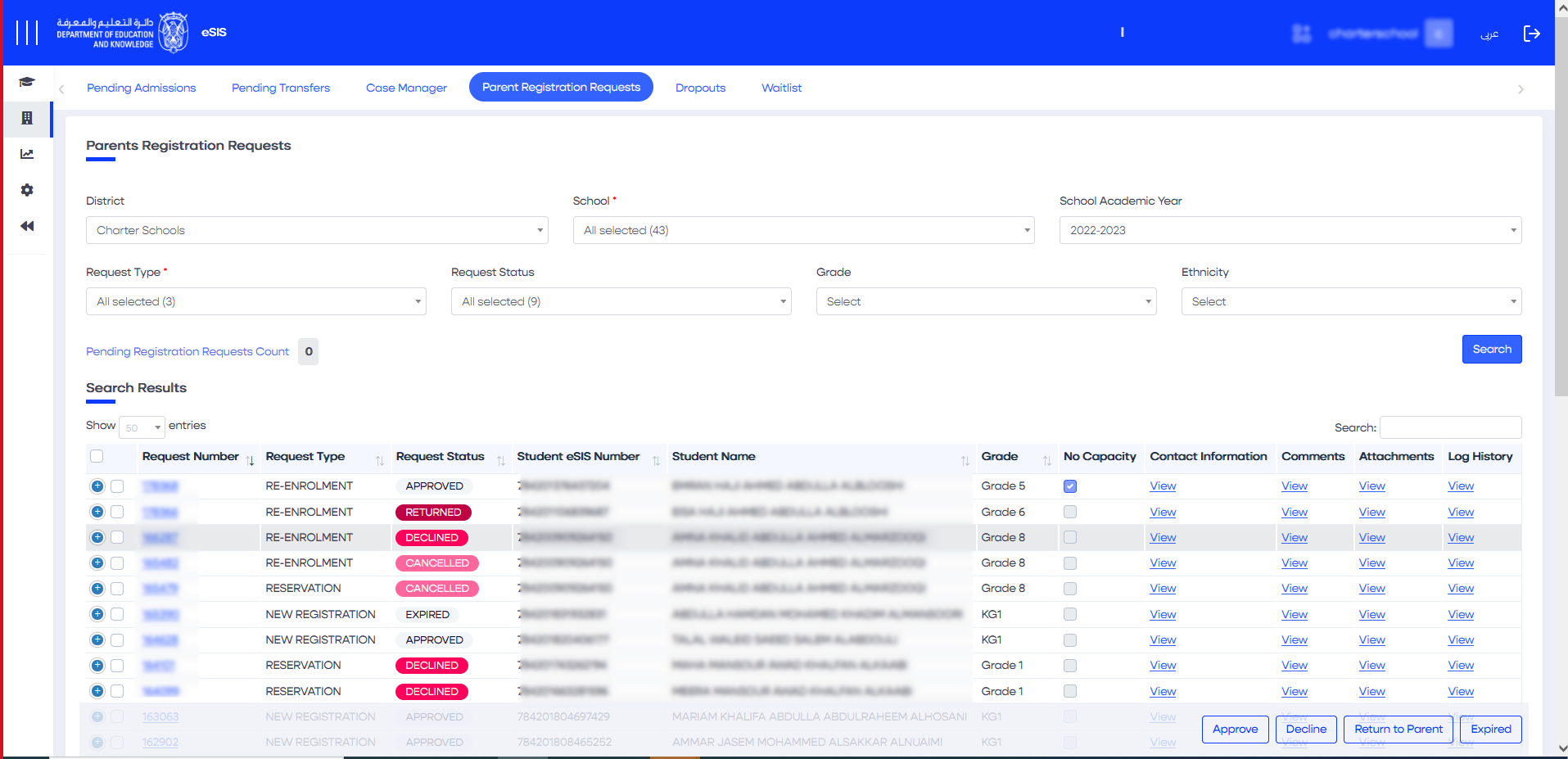
- Choose the desired request.
- Click "Return to Parents".
2.4.7. Waitlist
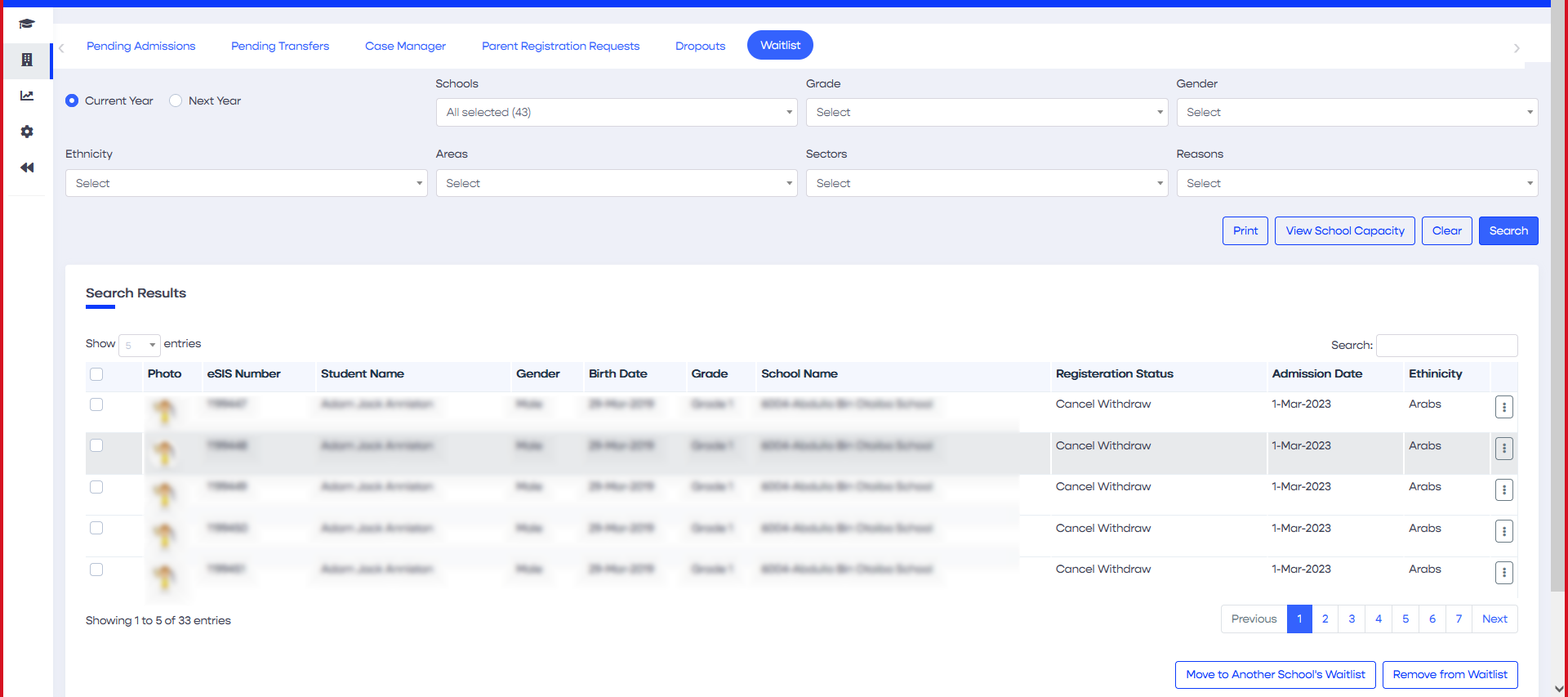
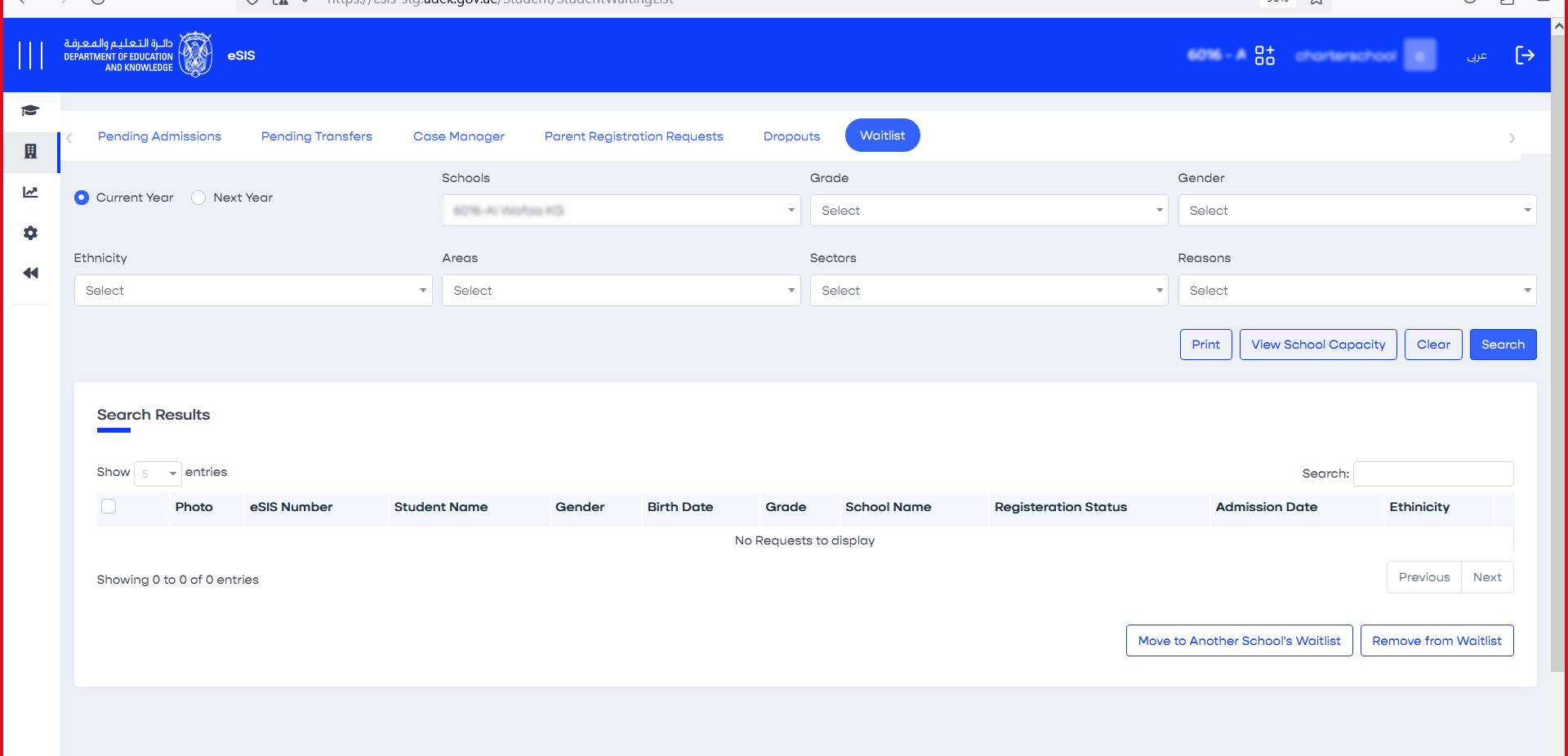
This feature is only available for charter schools and includes all enrollment requests that are pending due to the lack of capacity at the time of registration.
This list is exclusively managed by the ADEK superuser, who can either delete a student record based on the school’s request or transfer the student record to another school.
2.4.7.1. Deleting a Student Record
- Sign in to eSIS.
- From the left-side menu, select "Enrollment".
- Navigate to the "Waitlist" menu.
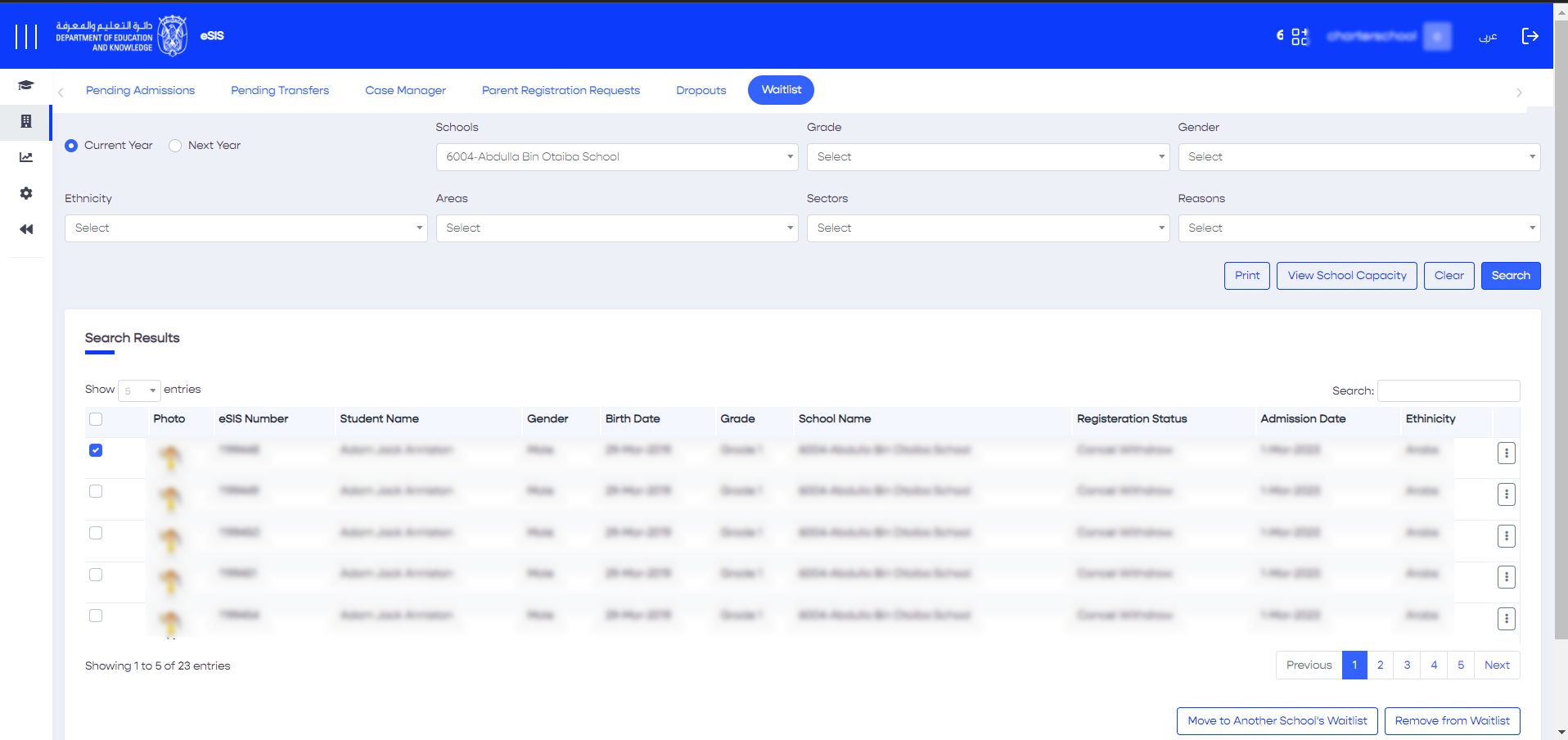
- Select the student record(s) to be deleted (you can select multiple student records).
- From the bottom right corner, click on the "Remove from Waitlist" button.
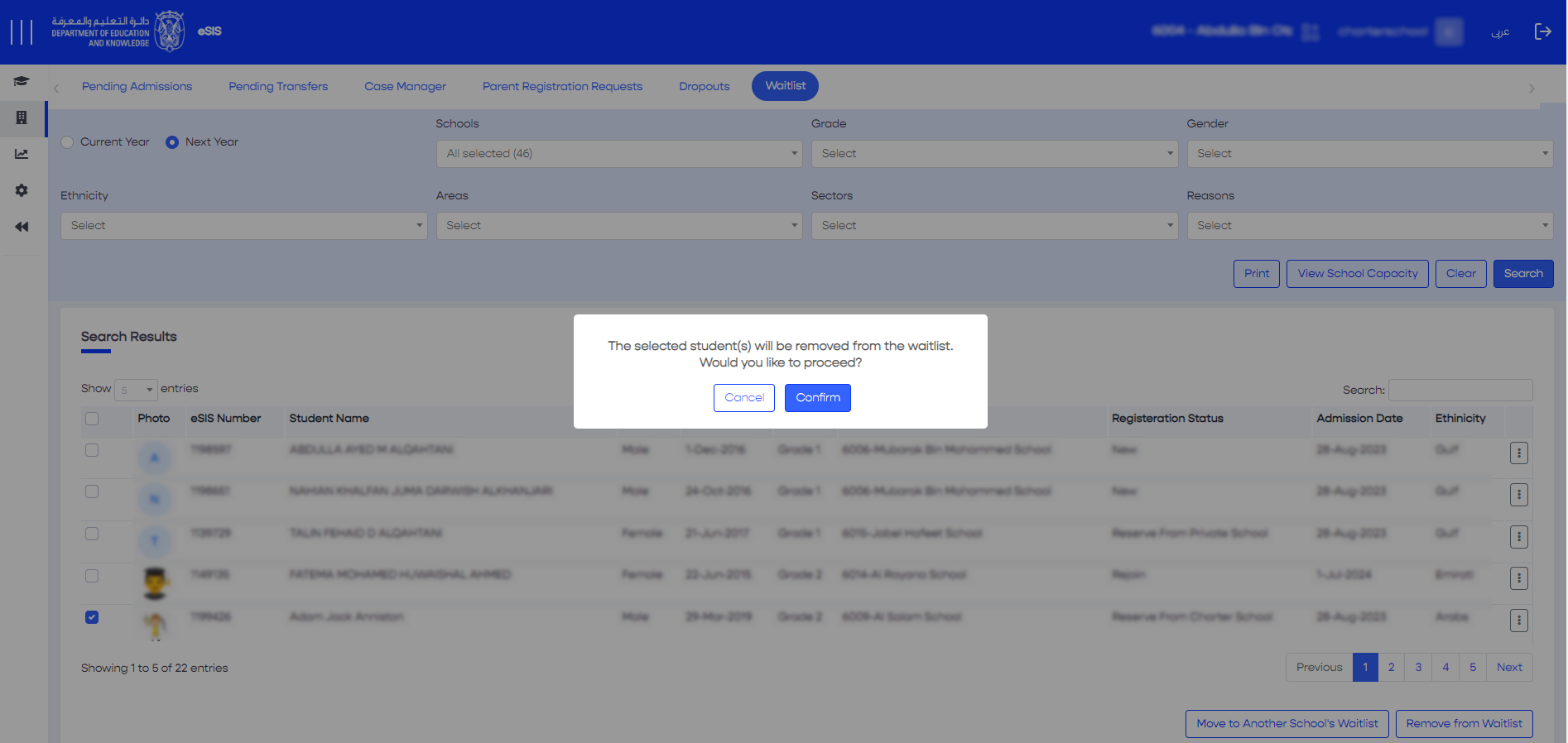
- A confirmation pop-up will appear. Click "Confirm" to proceed.
If the student is newly added to the eSIS system, the entire student profile will be deleted.
If the student already has an existing eSIS profile and has previously been registered at one of the Abu Dhabi schools, only the "Waitlist" record will be deleted and the student's status will be changed to "Withdrawn."
2.4.7.2. Moving a Record to Another School's Waitlist
- Sign in to eSIS.
- From the left-side menu, select "Enrollment".
- Navigate to the "Waitlist" menu.
- Select one or more student records you wish to move to another school's waitlist.
- Click on the "Move to Another School's Waitlist" button.
- A confirmation pop-up will appear. Click "Confirm" on the confirmation message.