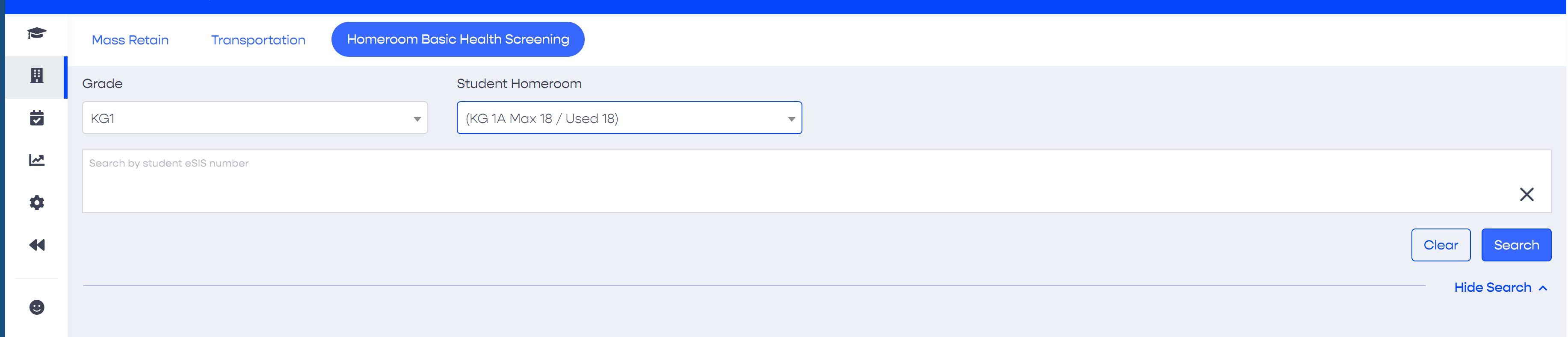
To display information on the page, search criteria need to be entered before clicking the search button to see results. There are two ways to search, either by selecting a grade and homeroom, or by entering a space or tab delimited list of students eSIS numbers. Hence the user can,
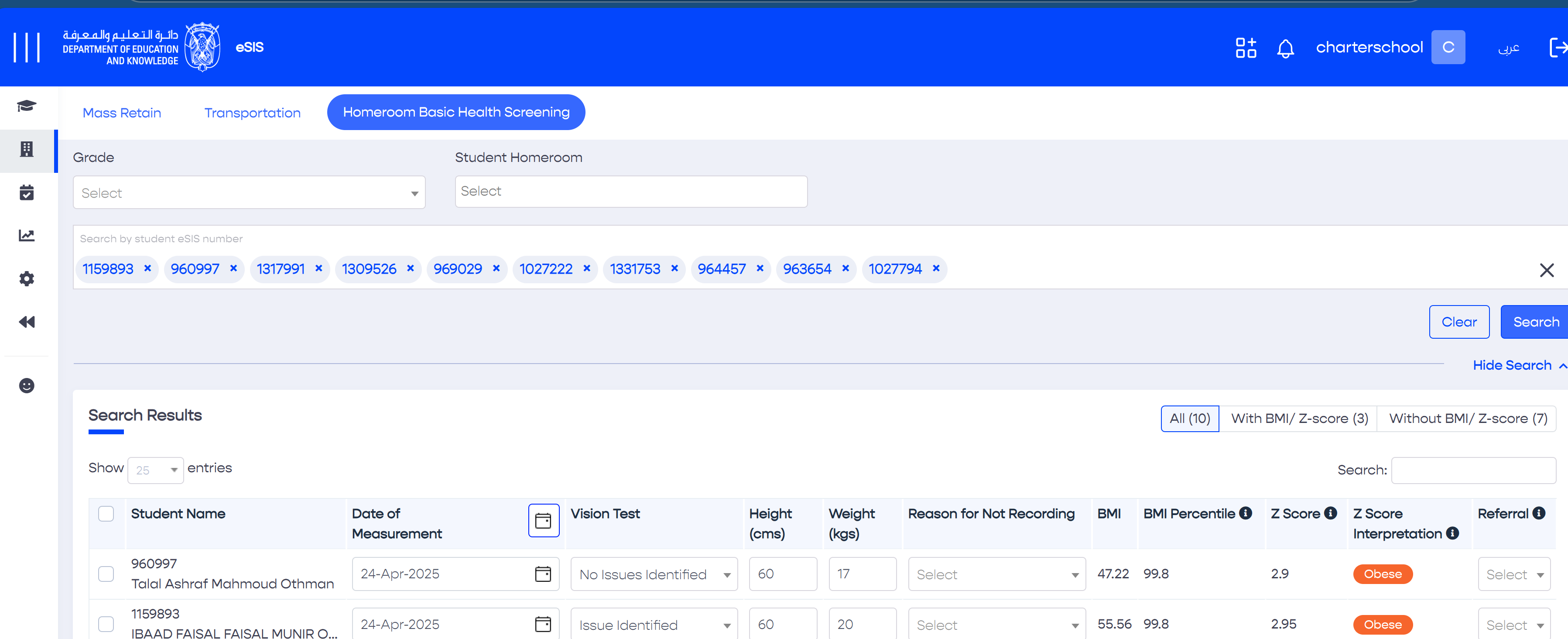
To search by student eSIS numbers, for example from an excel file, simply copy all values in the excel column and paste them into the box. The system will automatically list them in the forms of pills as depicted in the image above. Please note that a maximum of 50 eSIS numbers can be searched at a time.
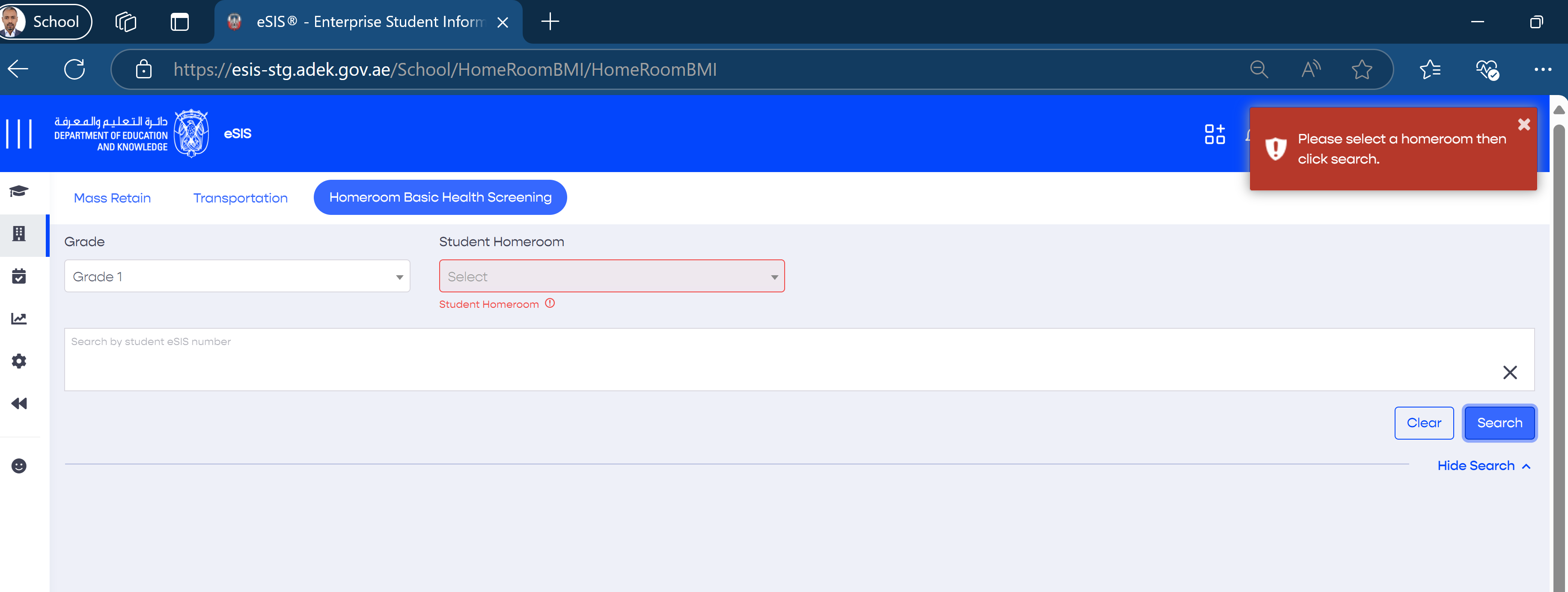
The user entered Grade only without selecting a Homeroom from the list
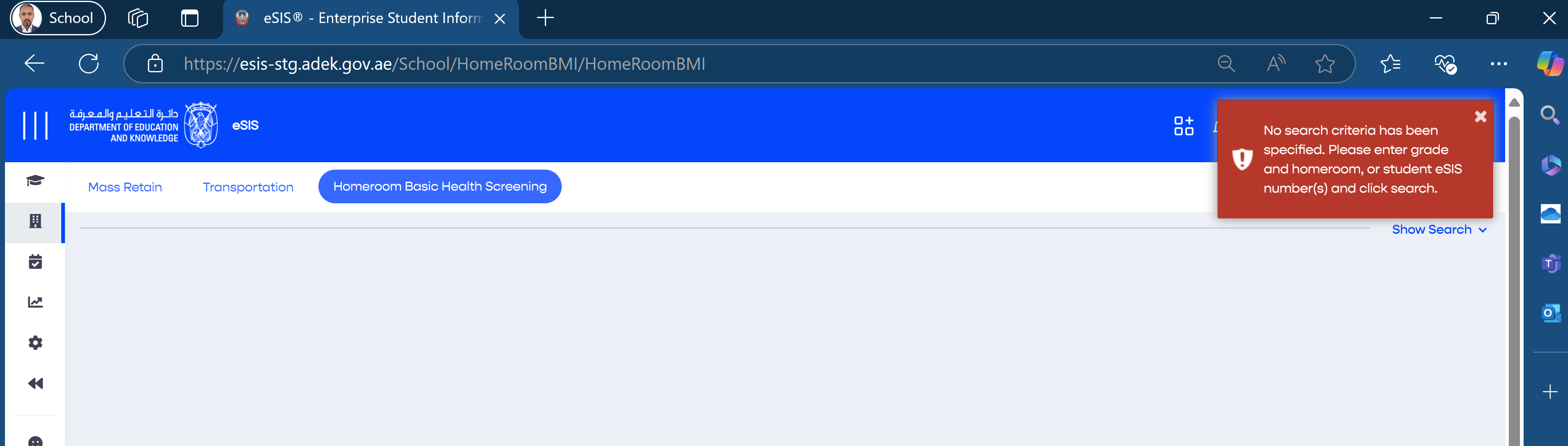
The user did not enter any search criteria
In both cases above the system will display error messages as displayed in the following screenshots.
In both cases above the system will display error messages as displayed in the following screenshots.
Place a QR code on your product or machinery to let a user easily retrieve the user guide documentation for it.
Right-click and 'copy'