ESIS

5.1.5. Using the Column Header Datepicker

To save time, the date can be applied to all students displayed with one action instead of entering it for each student individually by utilizing the Column Header Datepicker control of Date of Measurement table or grid column. The feature can be utilized as follows: - 
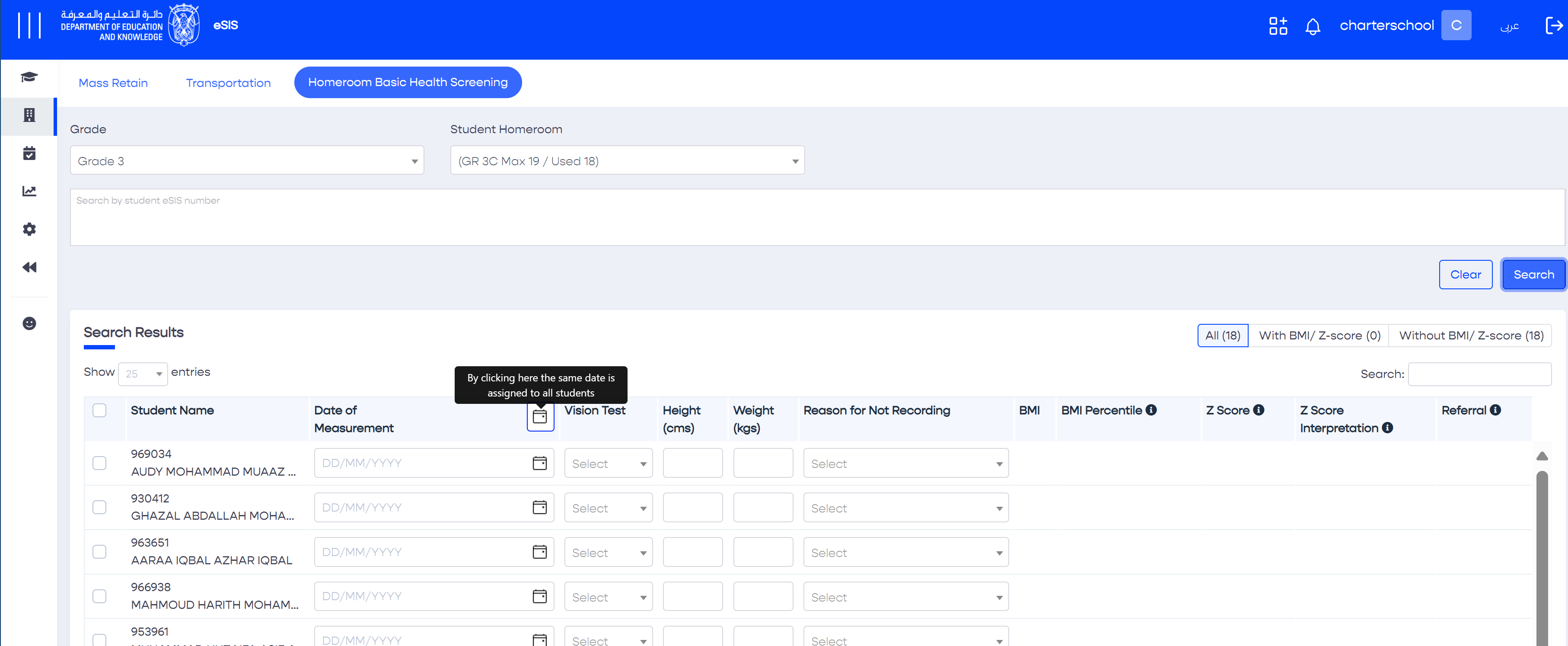
 

  1. Enter the search criteria and display the results
  2. Click on the column header Datepicker
  3. The system displays a calendar control
  4. Select the desired date
  5. The system applies the same date to all students, or only to those selected via the checkbox. 
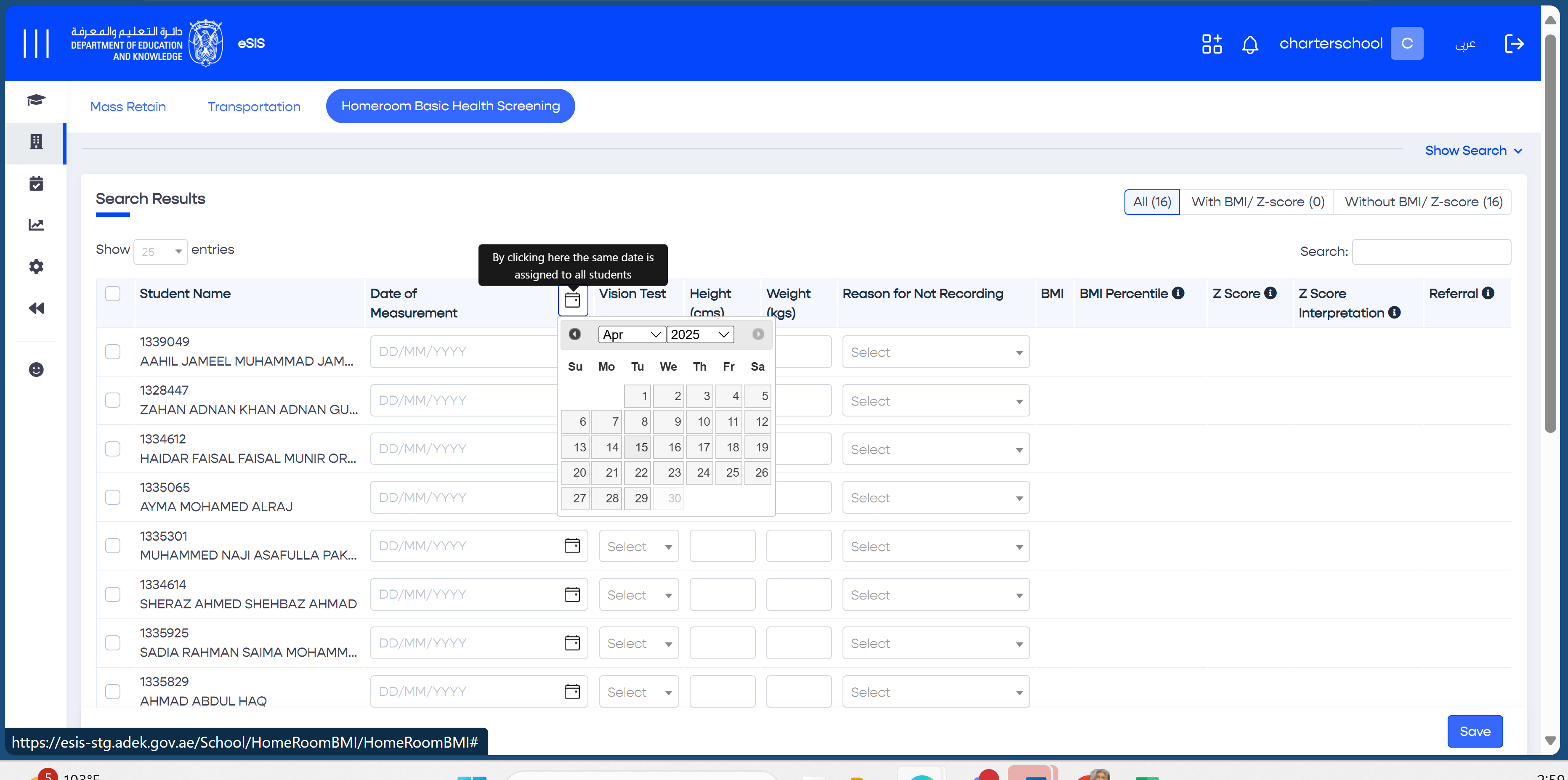
Above: Hovering with the mouse over the column header Datepicker displays a tooltip with a description.
Above: Upon clicking the column header Datepicker control, a calendar is displayed
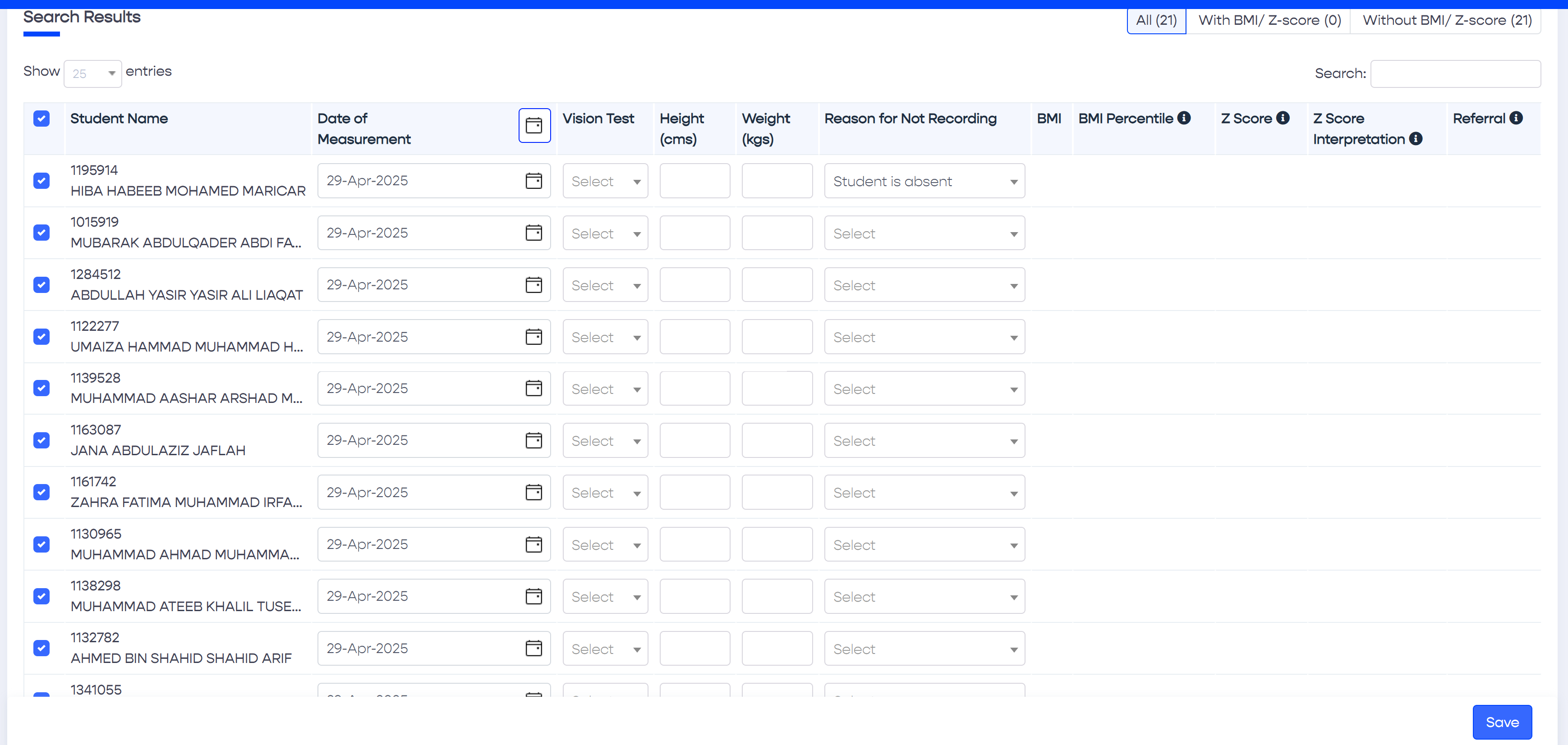
Above: The selected date is applied to all students displayed on the screen.
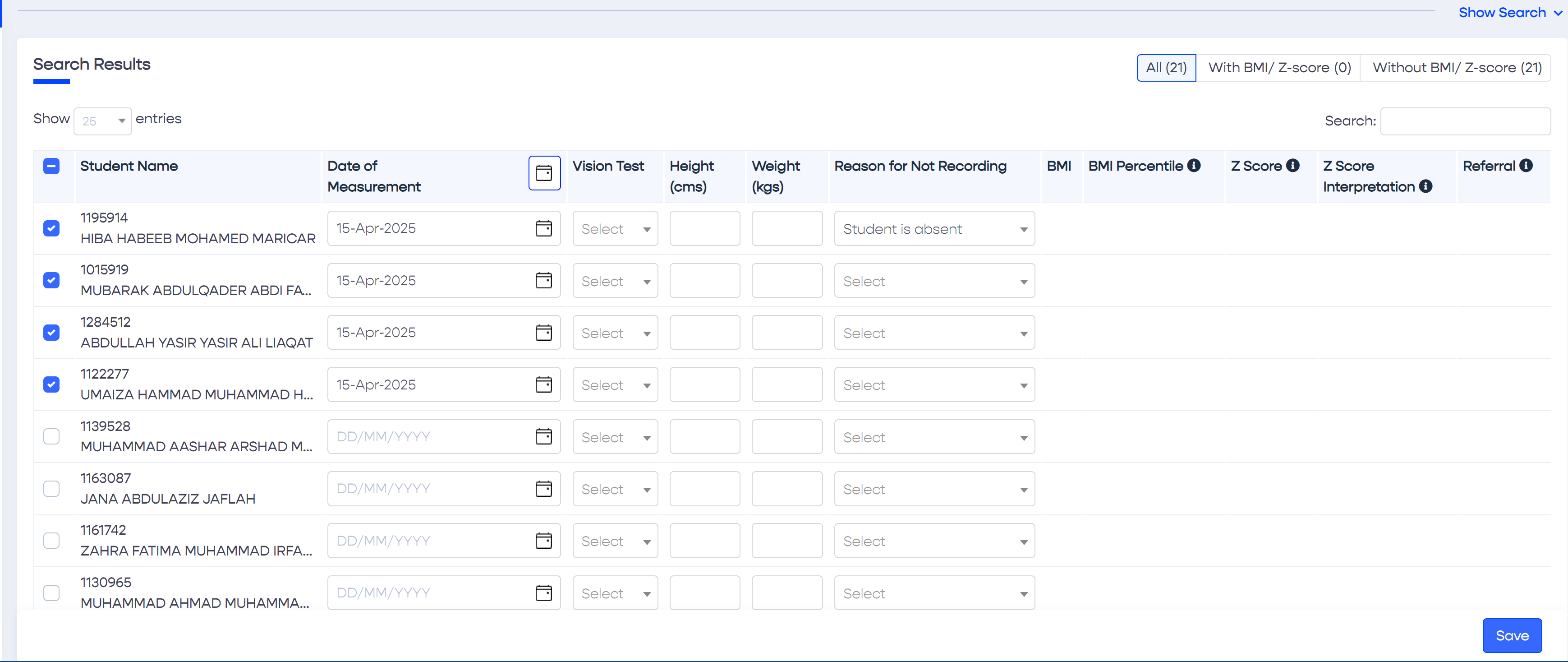
Above: If some and not all students are selected using the checkboxes, the date will only apply to the selected students.