Based on the Z score of a student, the nurse can optionally enter a Referral by selecting Yes or No indicating whether the student has received the nurse's recommendation. Once entered, pressing the Save button confirms that the referral (yes or no) is recorded along with the basic health screening information entered for the student.
Referrals can be recorded against each student individually (see section 5.1.7.1 below). Alternatively, the referral can be updated for multiple students, i.e. in bulk with one action (see section 5.1.7.2 below).
Referrals can be saved at the same time while recording the student's health record for the first time in the active academic year. However, if needed, the referral can be updated after the health record is entered, not necessarily at the same time as recording this data.
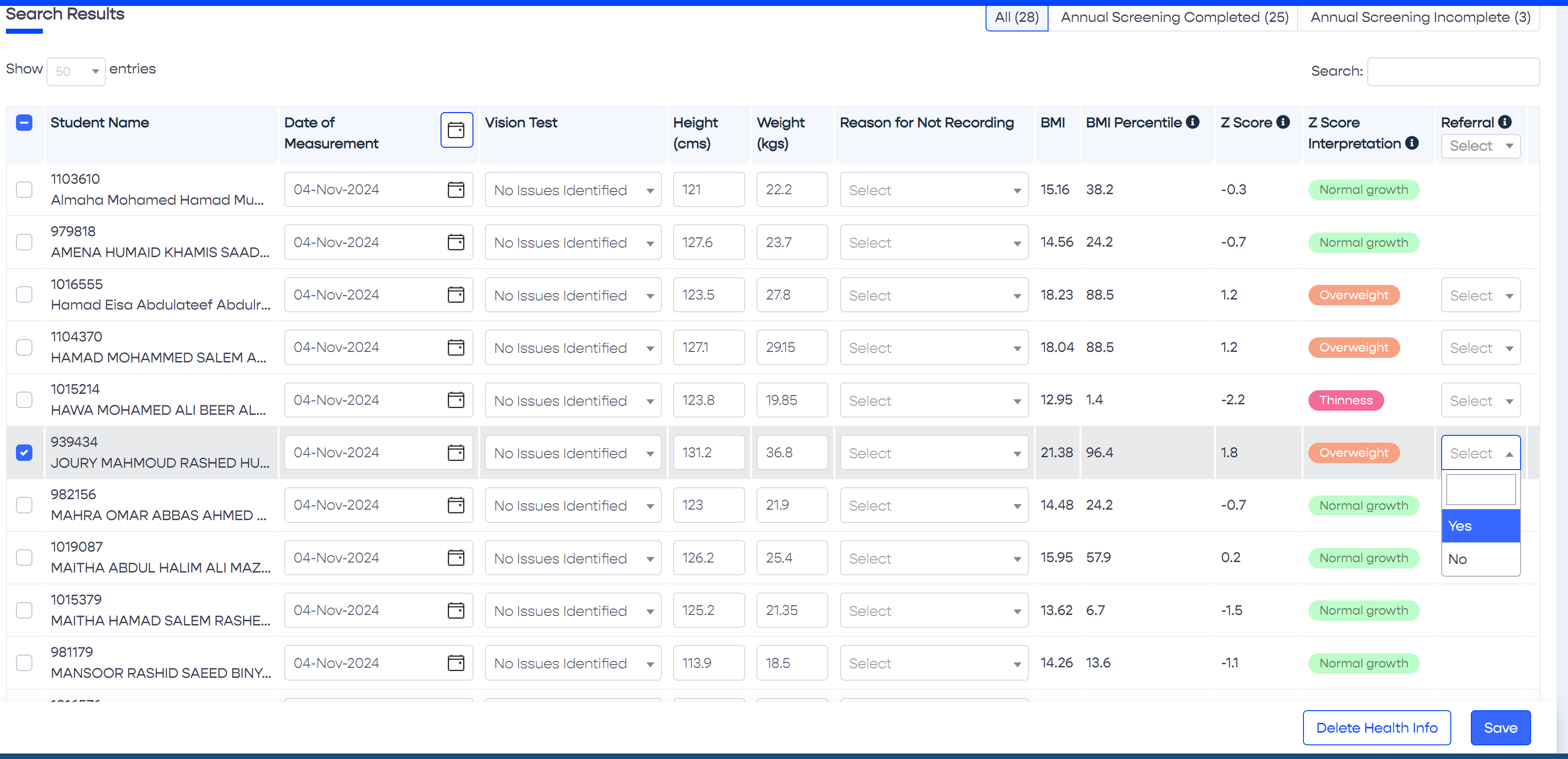
To update the referral of an individual student, tick the checkbox adjacent to the student eSIS number and name to select the student, before updating the referral column value of the selected student.
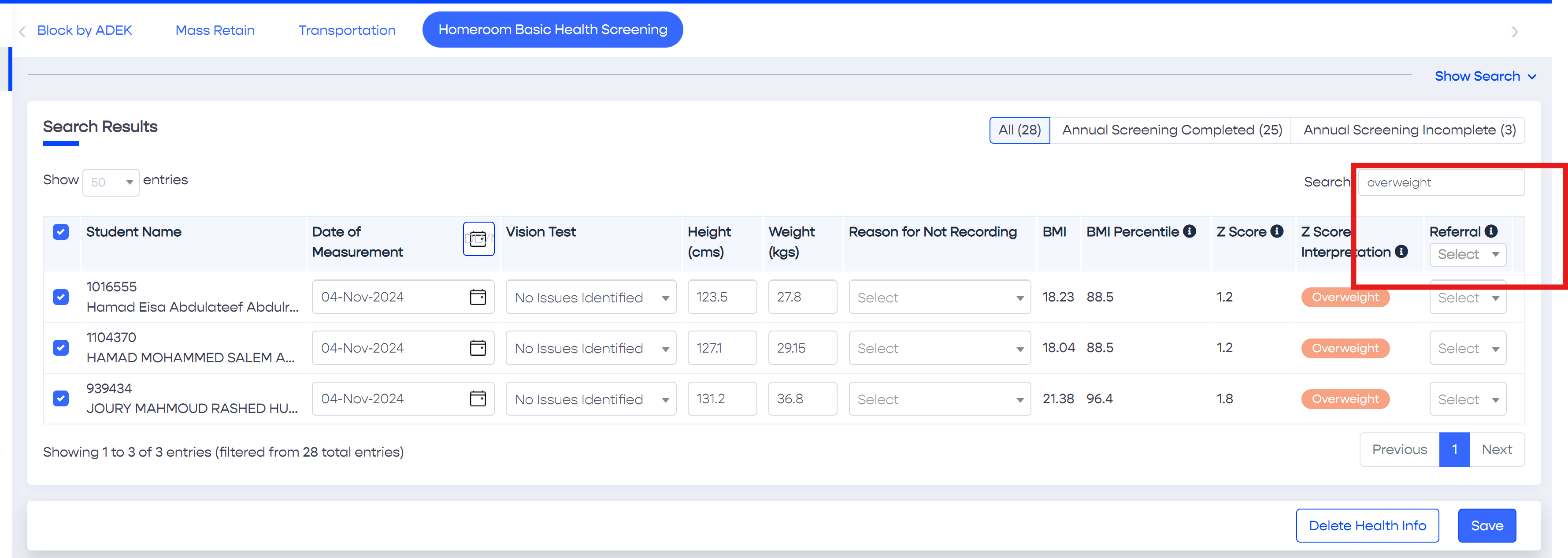
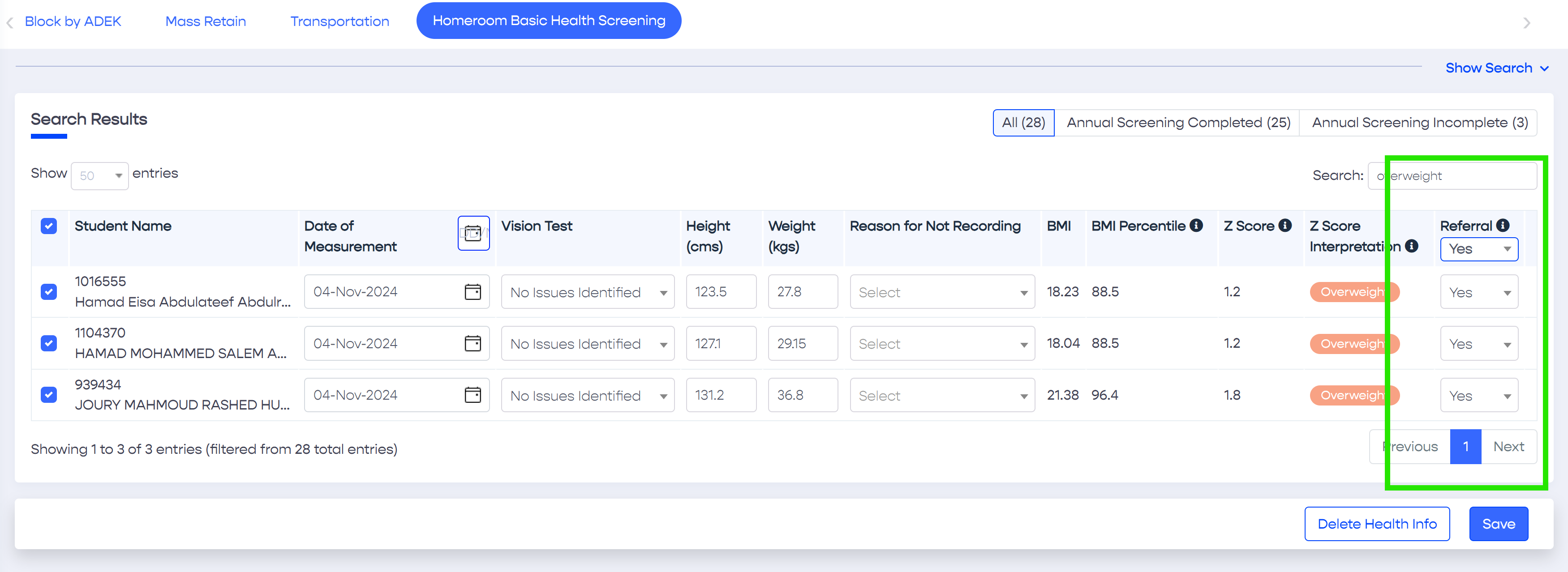
This option is useful in case health records are already saved for several students however the referral is not updated. In this case, do the following steps
Tip
If you have already entered basic health screening information for several students, for example one or more homerooms or possibly the entire school, and now you wish to update the referrals. You can do so by searching for students who are of abnormal growth, for example overweight, obese or severely obese, and update the referrals with one action by selecting "Yes" in the dropdown list placed in the Referral column header.
Selecting the required students can be done in two ways.
Place a QR code on your product or machinery to let a user easily retrieve the user guide documentation for it.
Right-click and 'copy'