From this page, the school nurse can enter basic health screening information of students in a homeroom. Basic health screening information is defined as the result of the vision test, height and weight of a student. Once this information is entered, for each student the system calculates the BMI, BMI percentile, z score and z score interpretation. Based on the z score of a student, the school nurse can optionally enter in the system whether a referral to a physician was provided.
The Homeroom Basic Health Screening Page is located in the path School -> Mass Update -> Homeroom Basic Health Screening depending on the menu configuration.
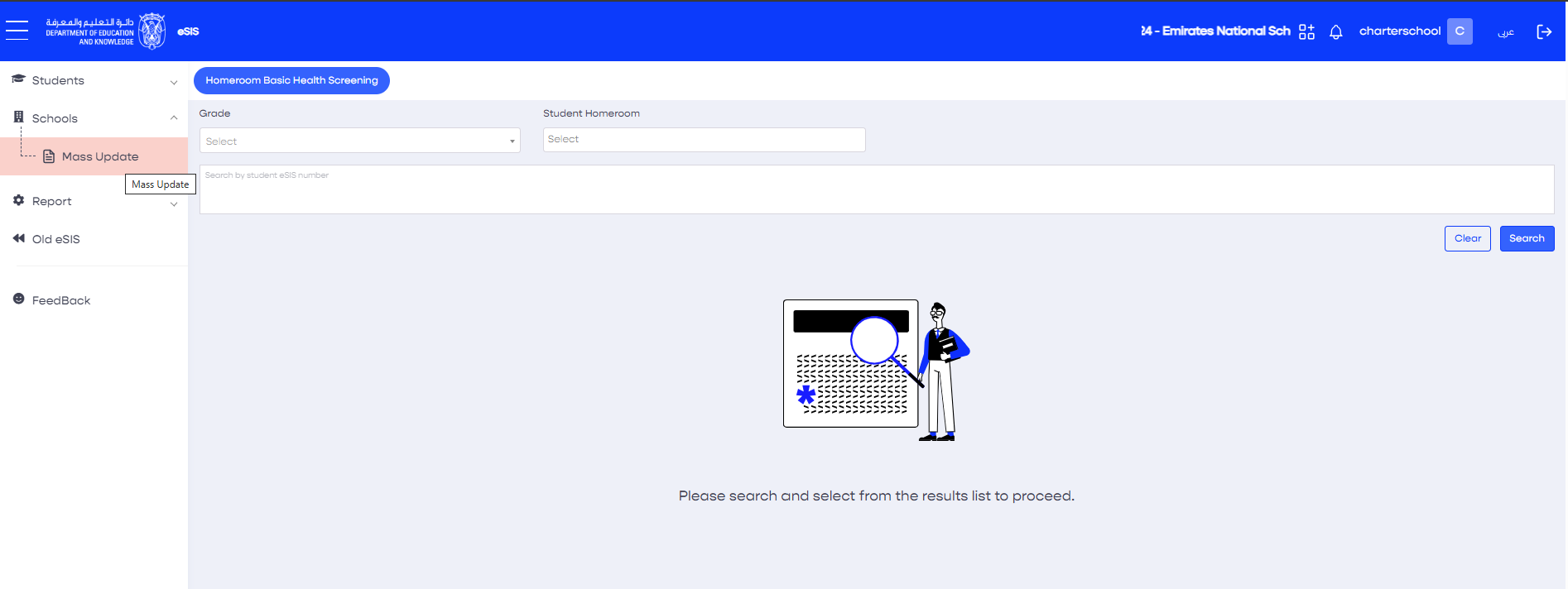
To display information on the page, search criteria need to be entered before clicking the search button to see results. There are two ways to search, either by selecting a grade and homeroom, or by entering a space or tab delimited list of students eSIS numbers. Hence the user can,
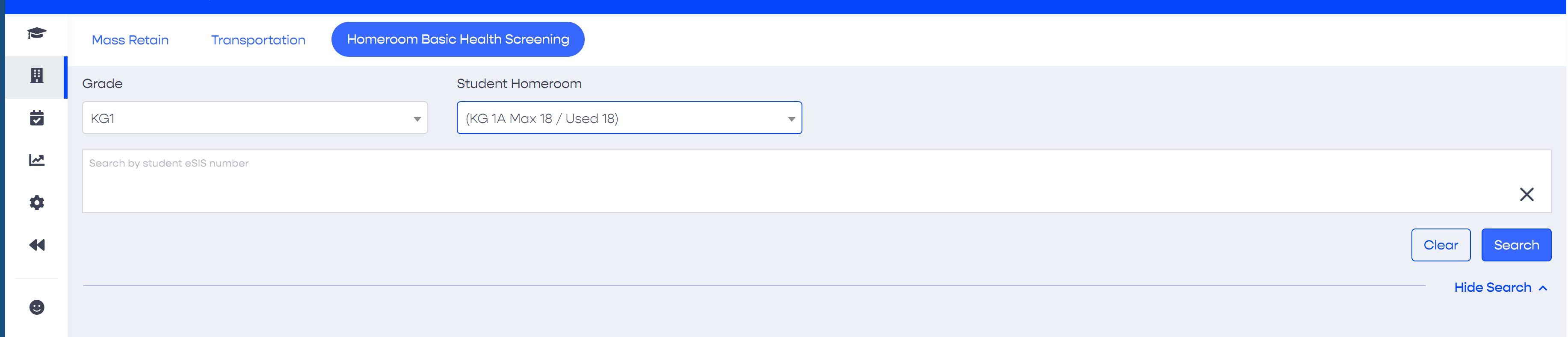
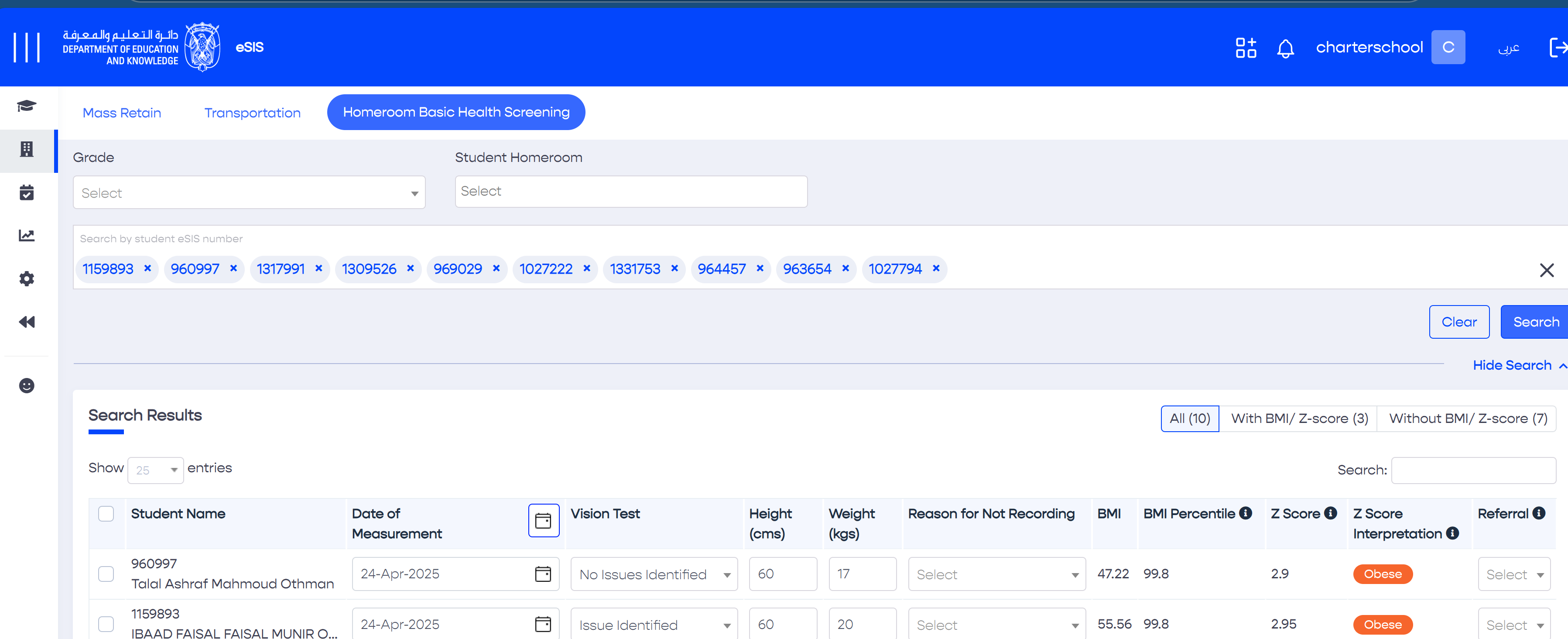
To search by student eSIS numbers, for example from an excel file, simply copy all values in the excel column and paste them into the box. The system will automatically list them in the forms of pills as depicted in the image above. Please note that a maximum of 50 eSIS numbers can be searched at a time.
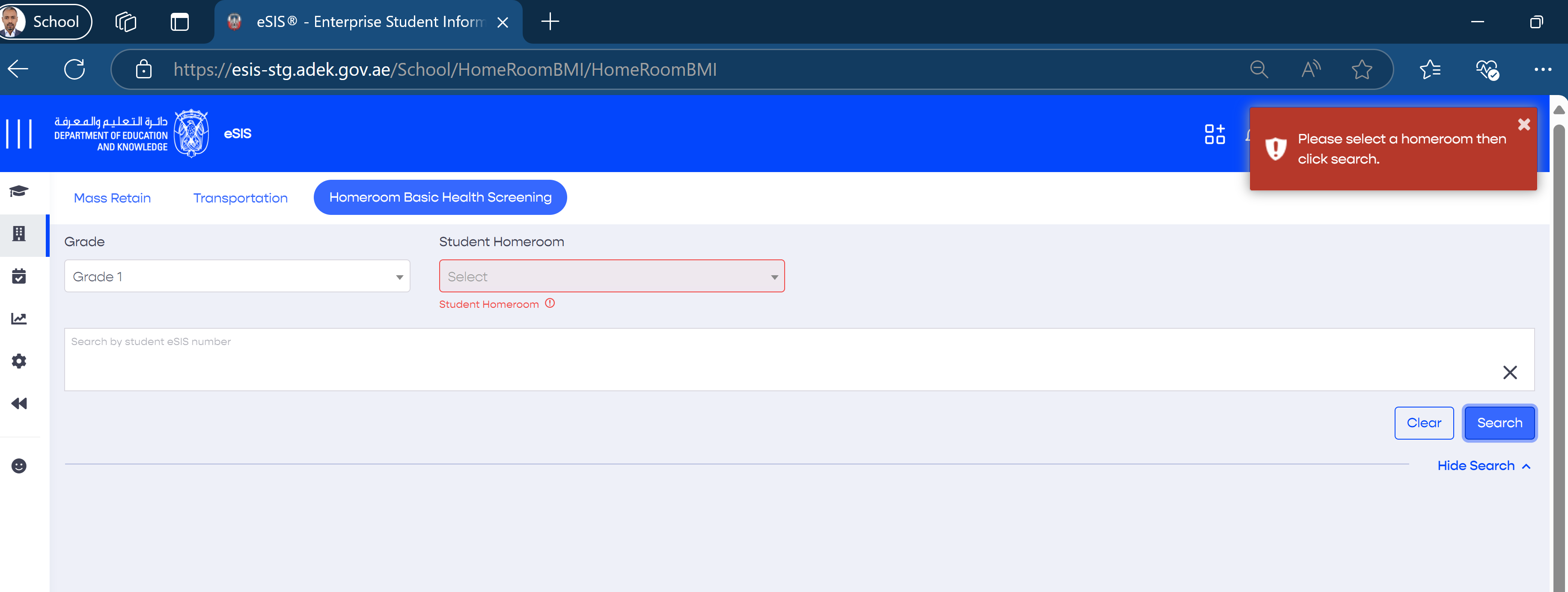
The user entered Grade only without selecting a Homeroom from the list
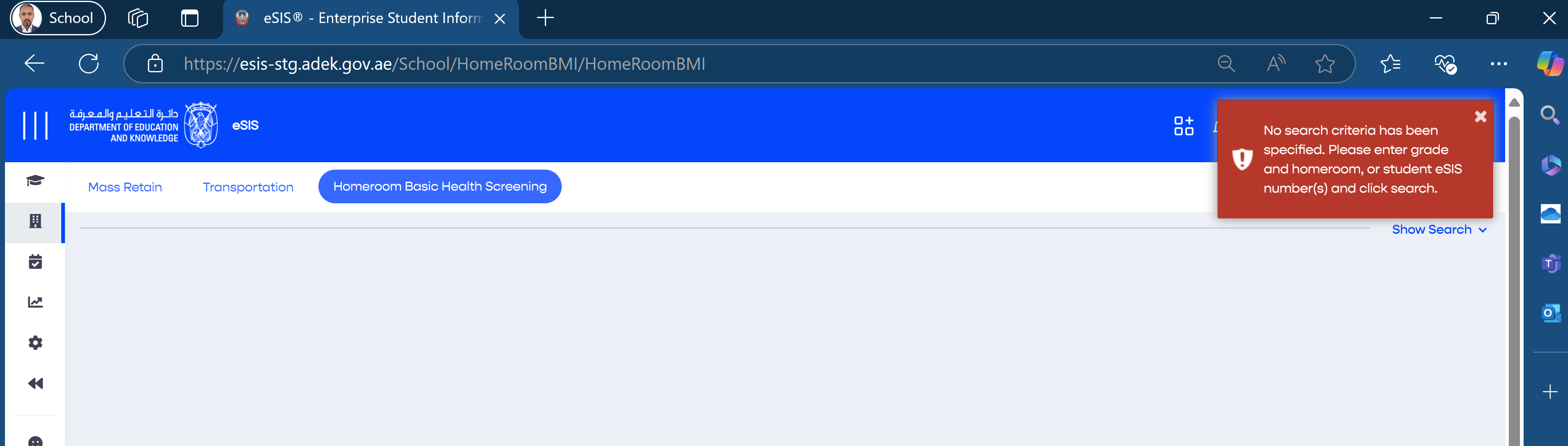
The user did not enter any search criteria
In both cases above the system will display error messages as displayed in the following screenshots.
In both cases above the system will display error messages as displayed in the following screenshots.
When the search button is pressed, the system displays the student eSIS numbers and their full names according to the search criteria entered, along with following columns that are related to basic health screening.
Following are health related columns. This information is entered by the school nurse.
The following column data is calculated by the system and displayed adjacent to each student's name.
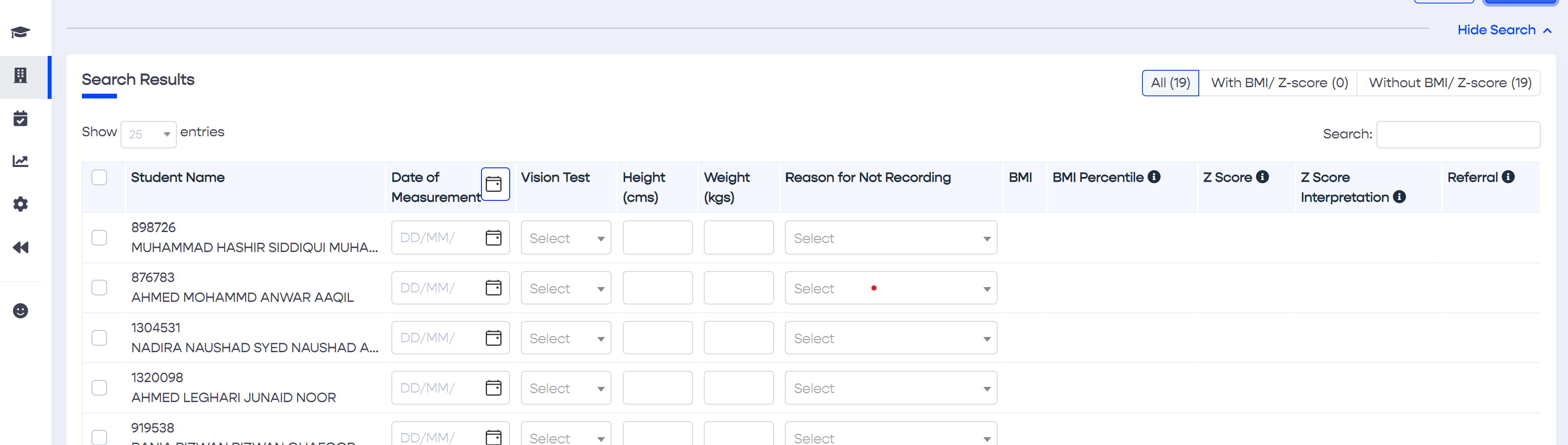
Calculated Column Definitions
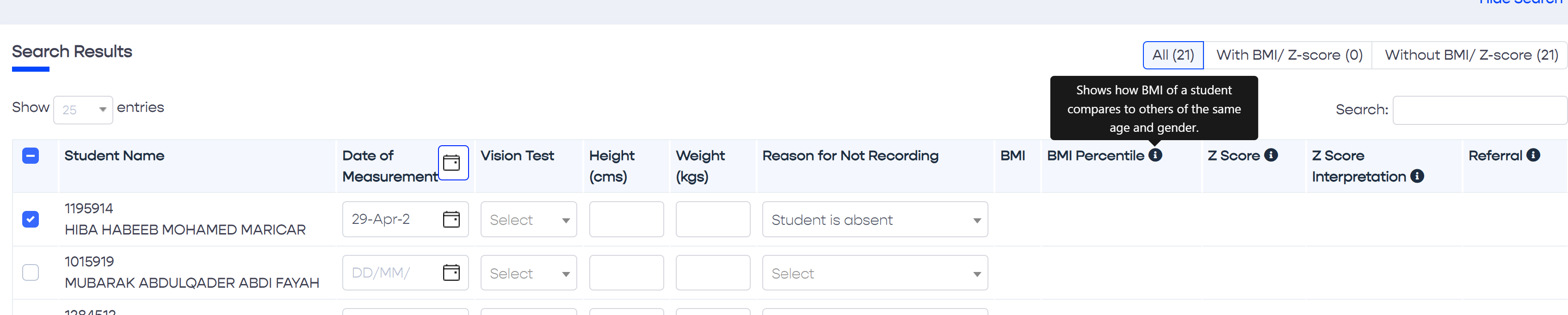
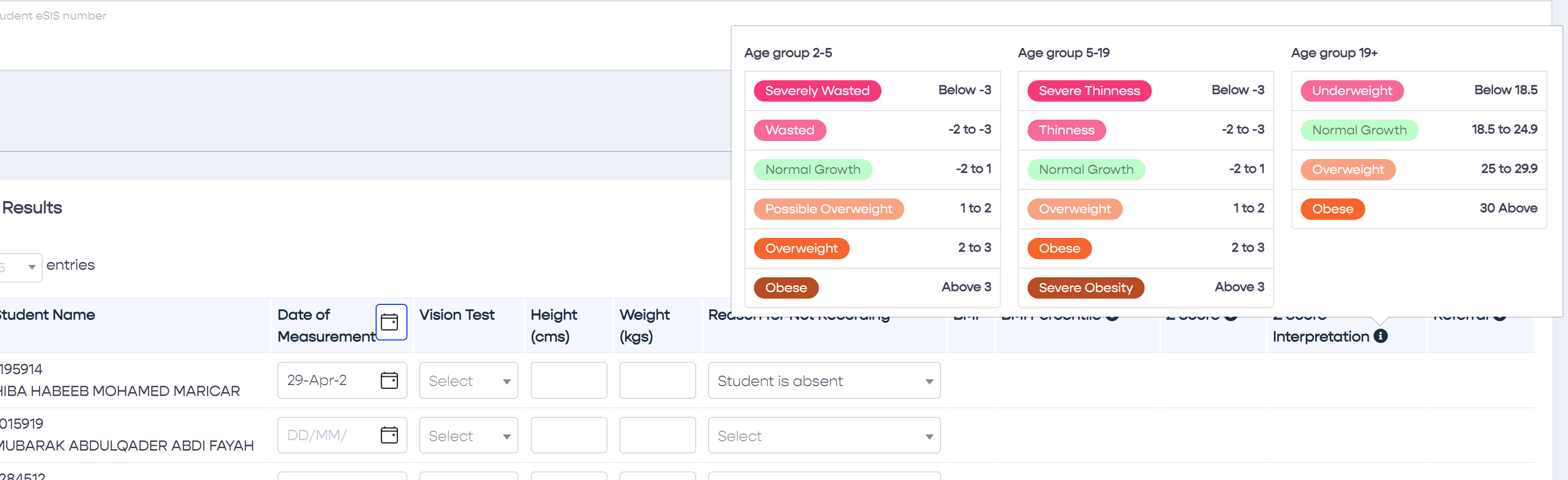
Definitions are found on the screen by hovering with the mouse cursor above the information icon (i) placed in the headers of the calculated columns.
A student's basic health screening information is added or updated by performing the following steps: -
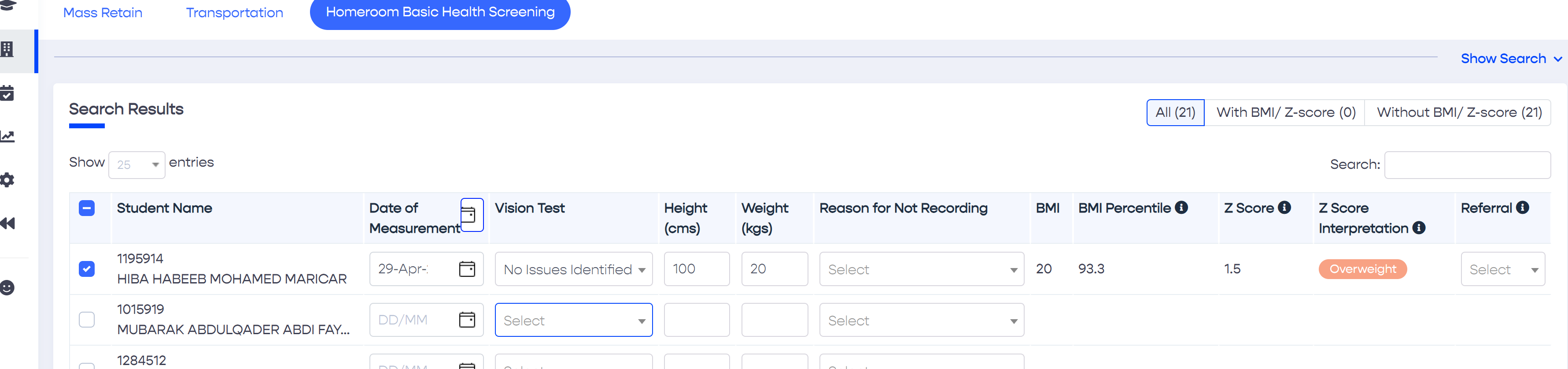
Using Keyboard Navigation
To enter basic health screening information, position the cursor in the Vision Test field of the first student in the table. Using the keyboard arrows, navigate to the desired value in the list and then press enter to select it. To move to next field, i.e. Height, press the Tab key to move to the Weight field. Once the Weight is entered, click Tab again to navigate to the Vision Test field of the next student in the table.
To save time, the date can be applied to all students displayed with one action instead of entering it for each student individually by utilizing the Column Header Datepicker control of Date of Measurement table or grid column. The feature can be utilized as follows: -
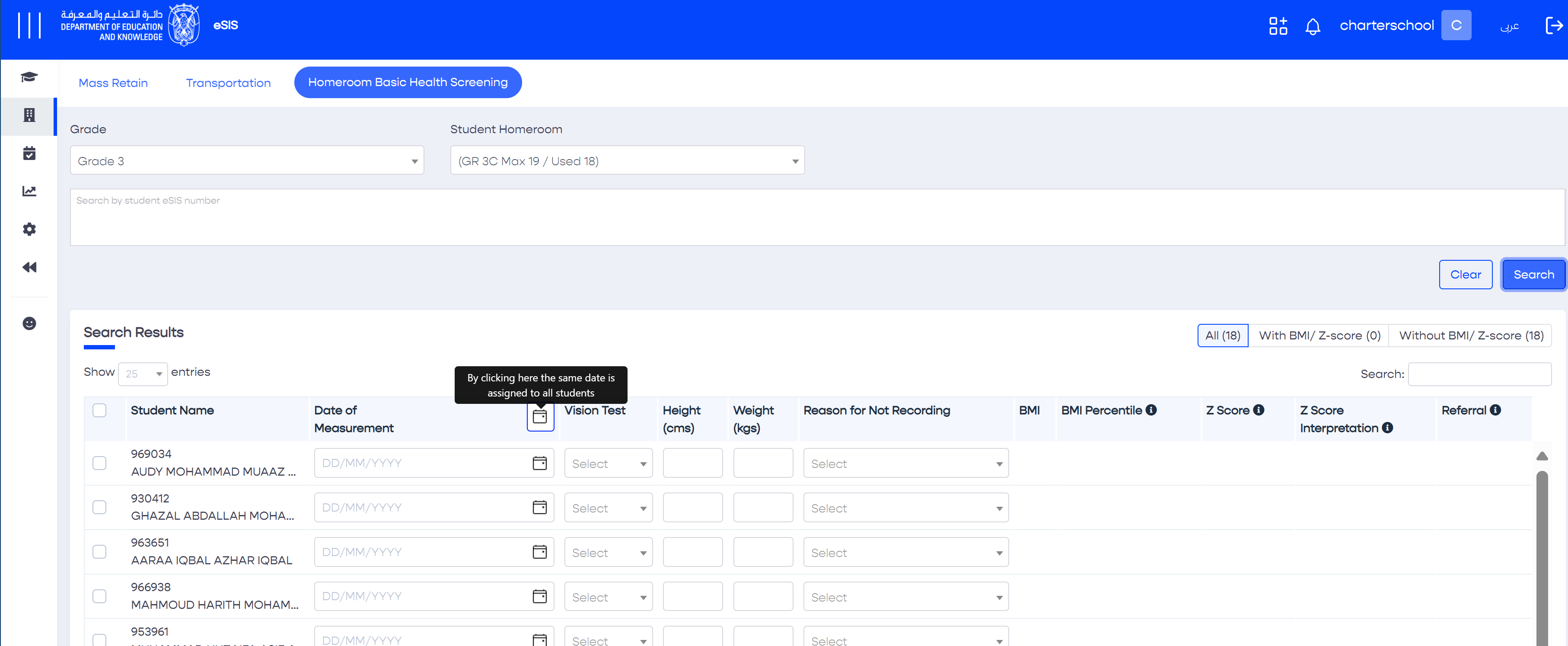
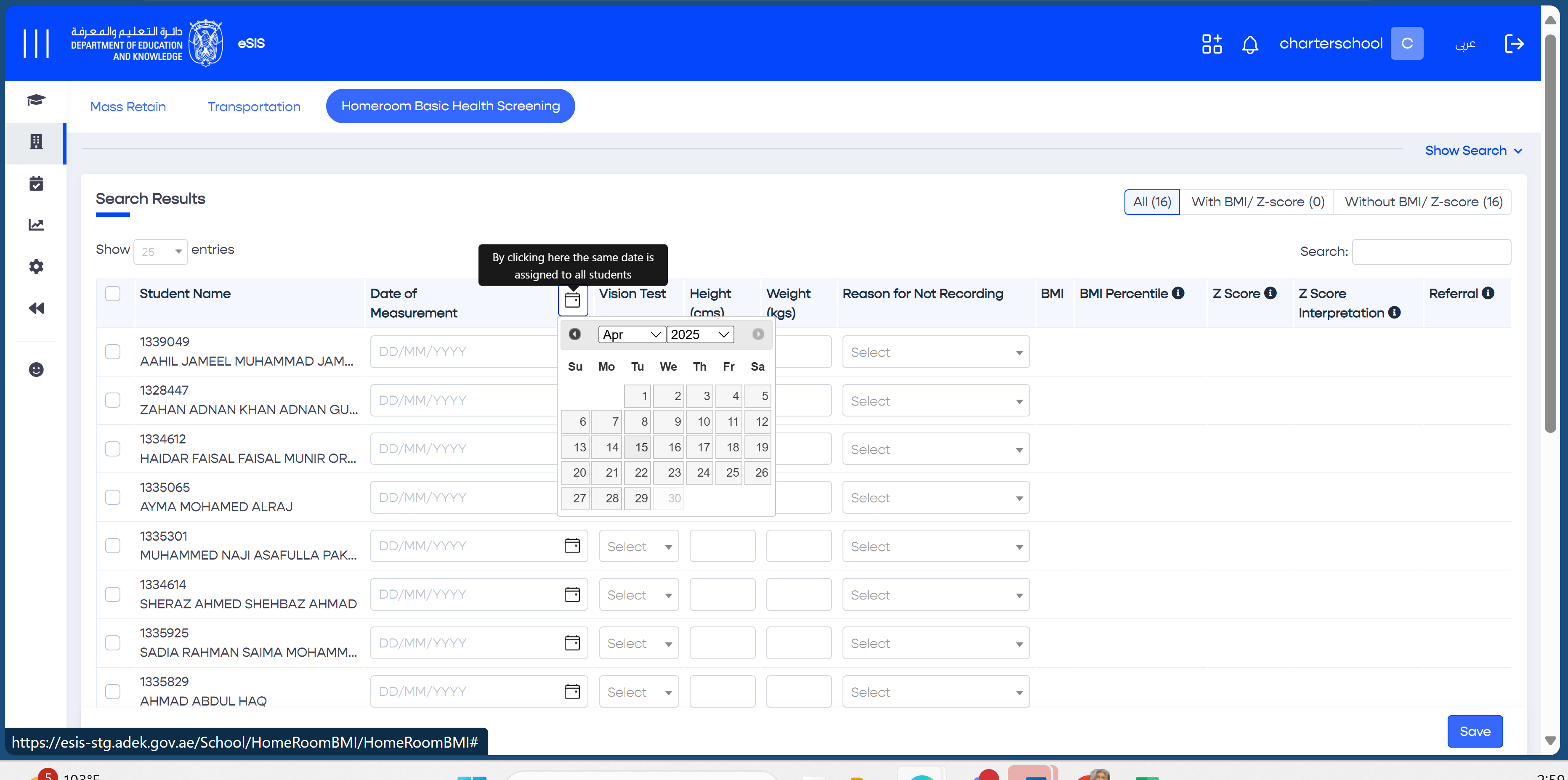
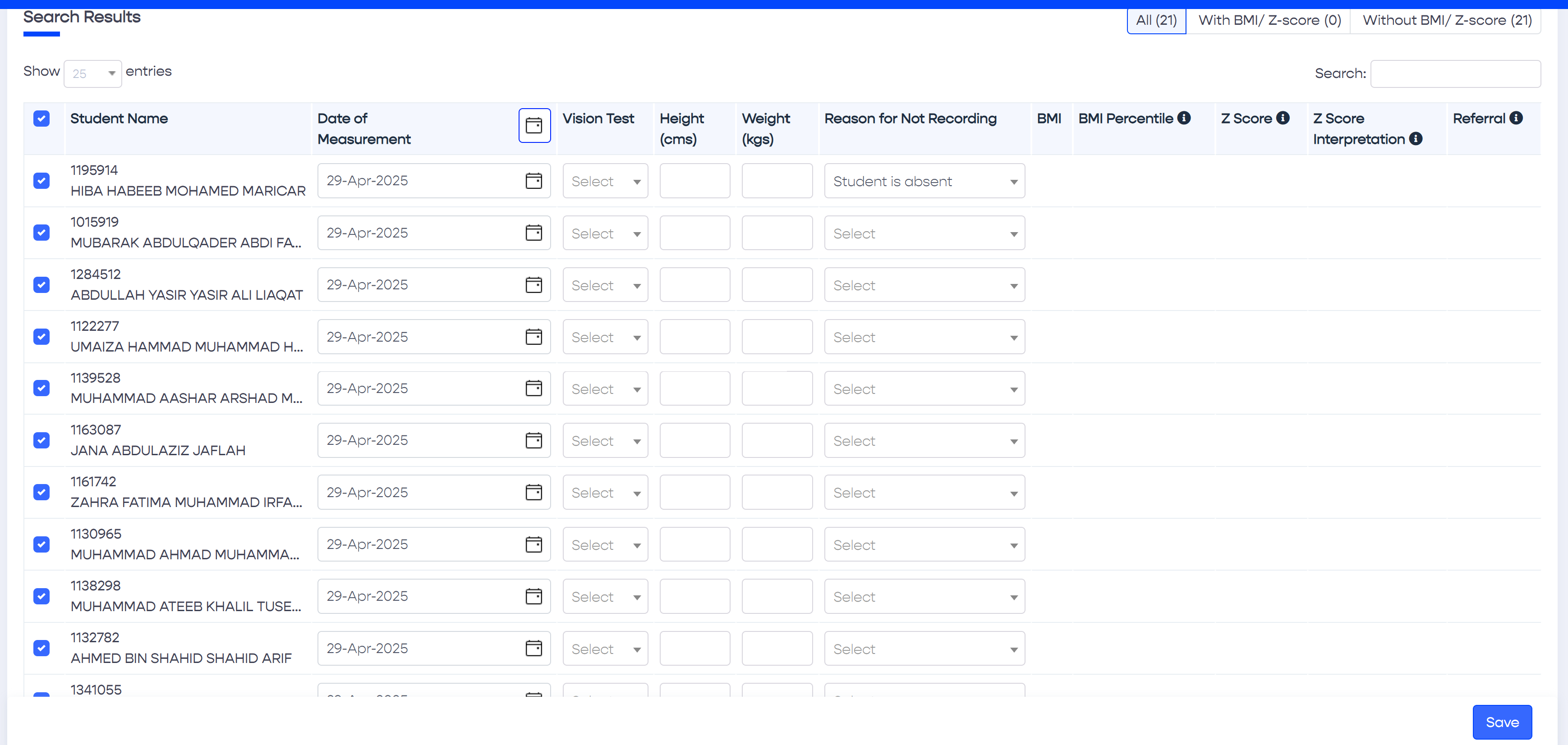
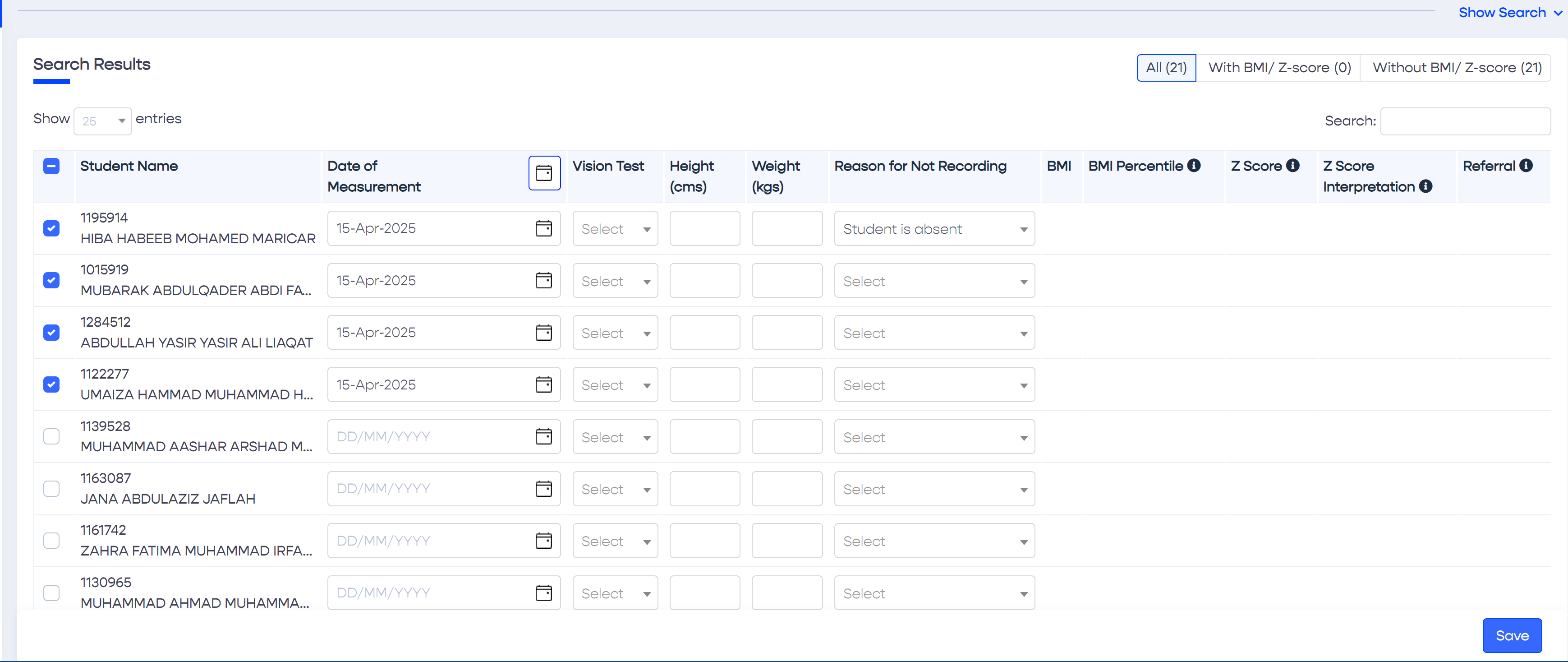
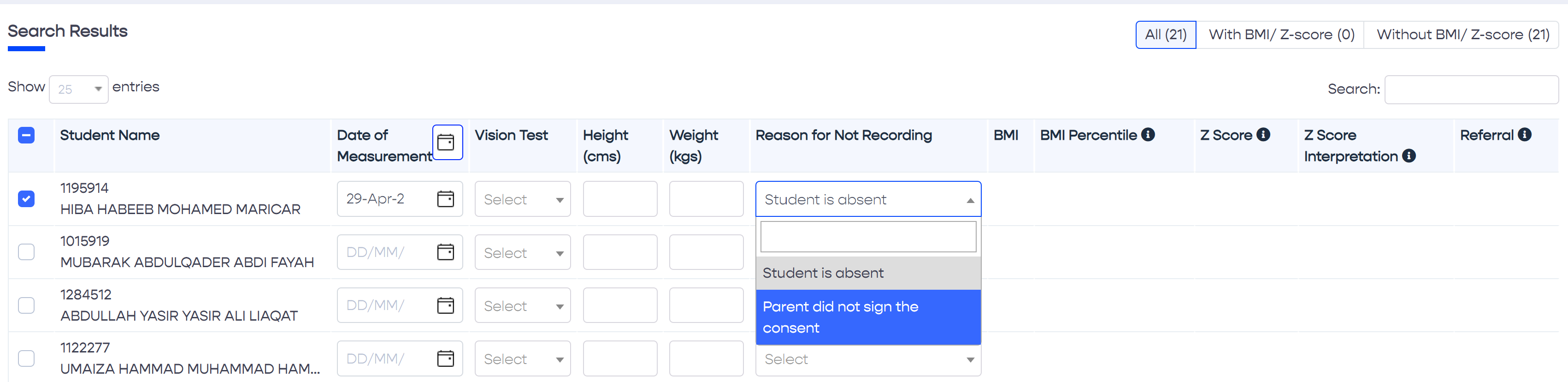
In case basic health screening information for one or more students of a homeroom is not available, then the reason for not recording this information needs to be entered in the system by executing the following steps.
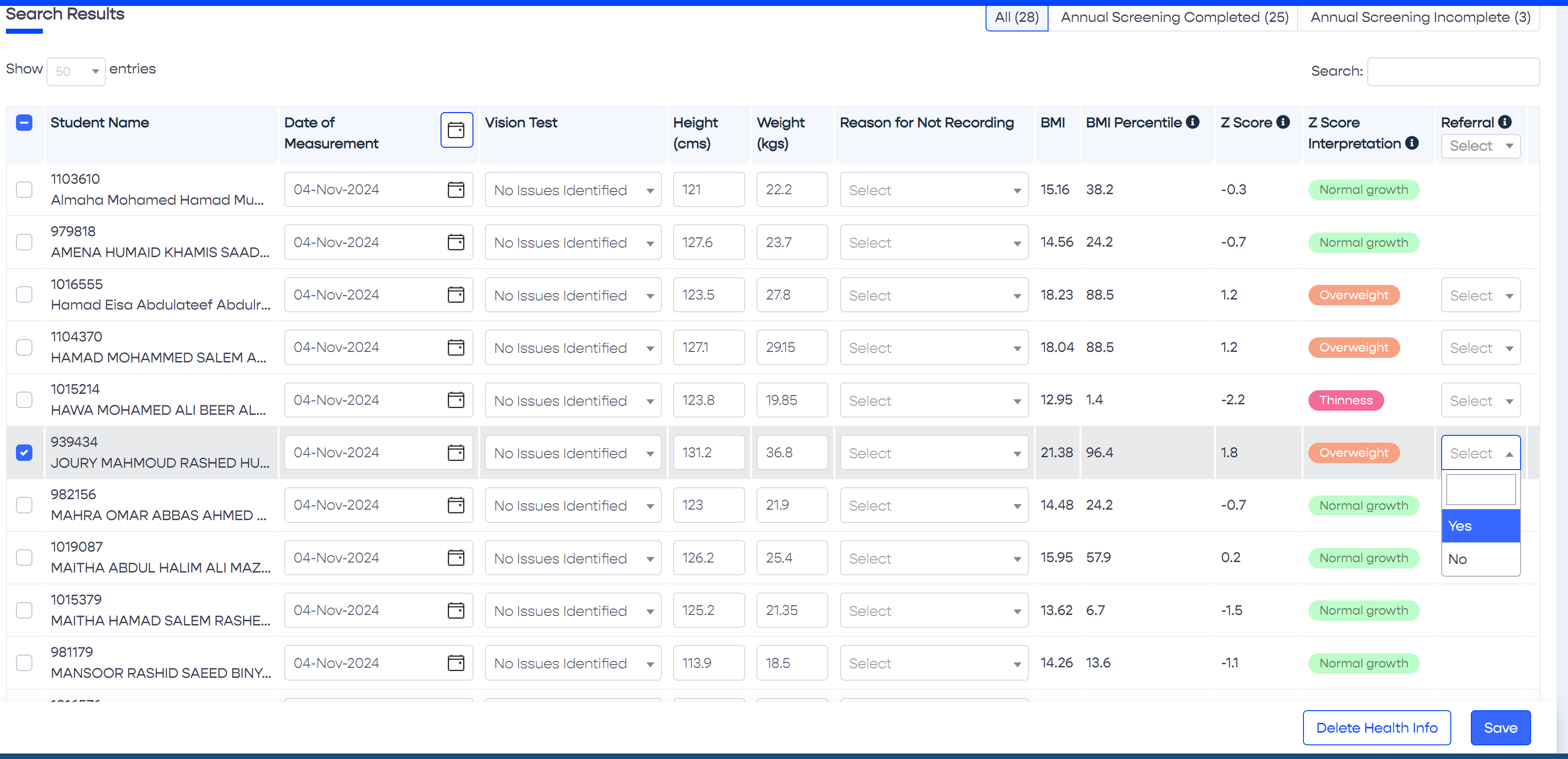
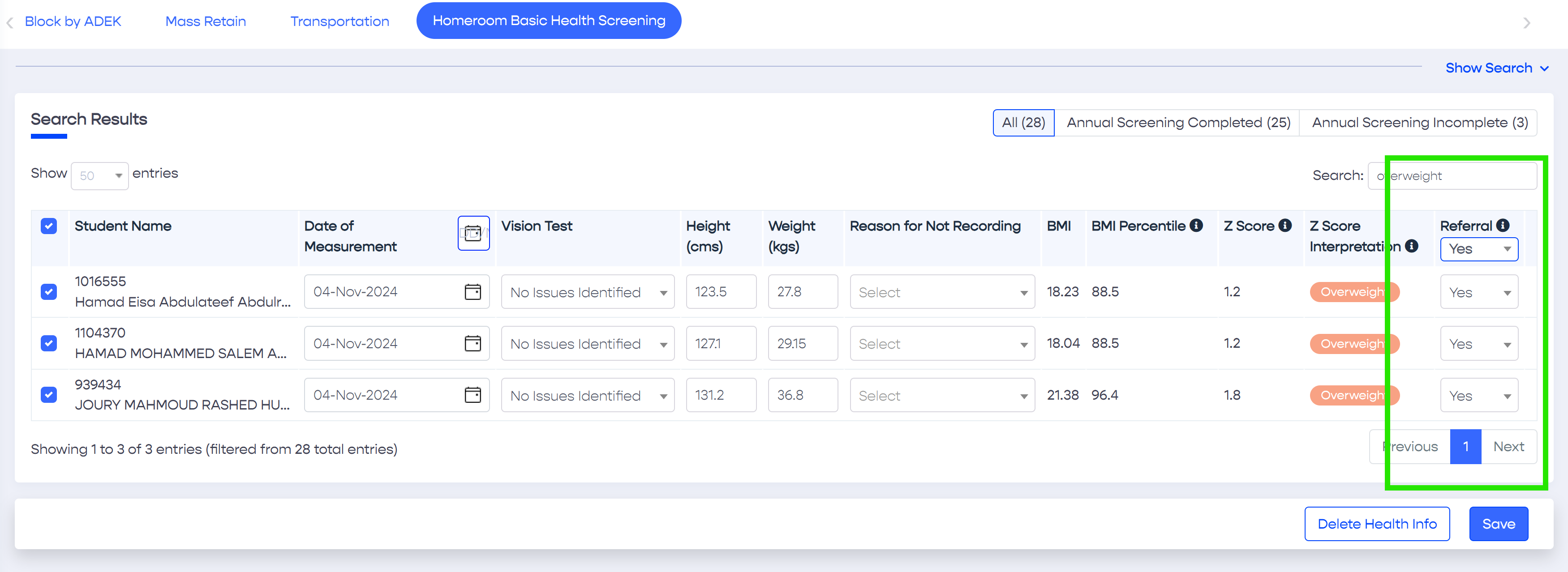
Based on the Z score of a student, the nurse can optionally enter a Referral by selecting Yes or No indicating whether the student has received the nurse's recommendation. Once entered, pressing the Save button confirms that the referral (yes or no) is recorded along with the basic health screening information entered for the student.
Referrals can be recorded against each student individually (see section 5.1.7.1 below). Alternatively, the referral can be updated for multiple students, i.e. in bulk with one action (see section 5.1.7.2 below).
Referrals can be saved at the same time while recording the student's health record for the first time in the active academic year. However, if needed, the referral can be updated after the health record is entered, not necessarily at the same time as recording this data.
To update the referral of an individual student, tick the checkbox adjacent to the student eSIS number and name to select the student, before updating the referral column value of the selected student.
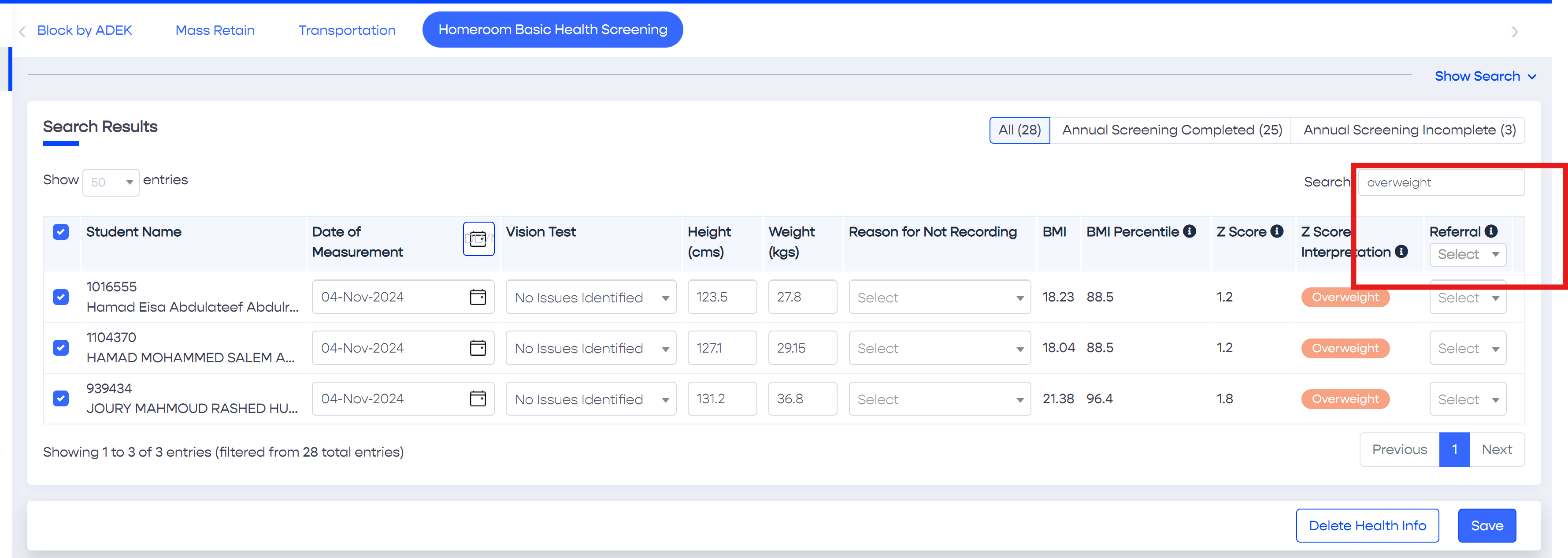
This option is useful in case health records are already saved for several students however the referral is not updated. In this case, do the following steps
Tip
If you have already entered basic health screening information for several students, for example one or more homerooms or possibly the entire school, and now you wish to update the referrals. You can do so by searching for students who are of abnormal growth, for example overweight, obese or severely obese, and update the referrals with one action by selecting "Yes" in the dropdown list placed in the Referral column header.
Selecting the required students can be done in two ways.
Place a QR code on your product or machinery to let a user easily retrieve the user guide documentation for it.
Right-click and 'copy'